Roles & Permissions – Manage Staff Access
The Roles & Permissions feature allows you to control what each staff user member can view, access, and manage within your system. This helps ensure better security, accountability, and smoother operations across your business.
Navigation Path
Settings → Roles & Permissions
Step-by-Step Guide
1. Access Roles & Permissions
Go to Settings from the main menu.
Click on Roles & Permissions.
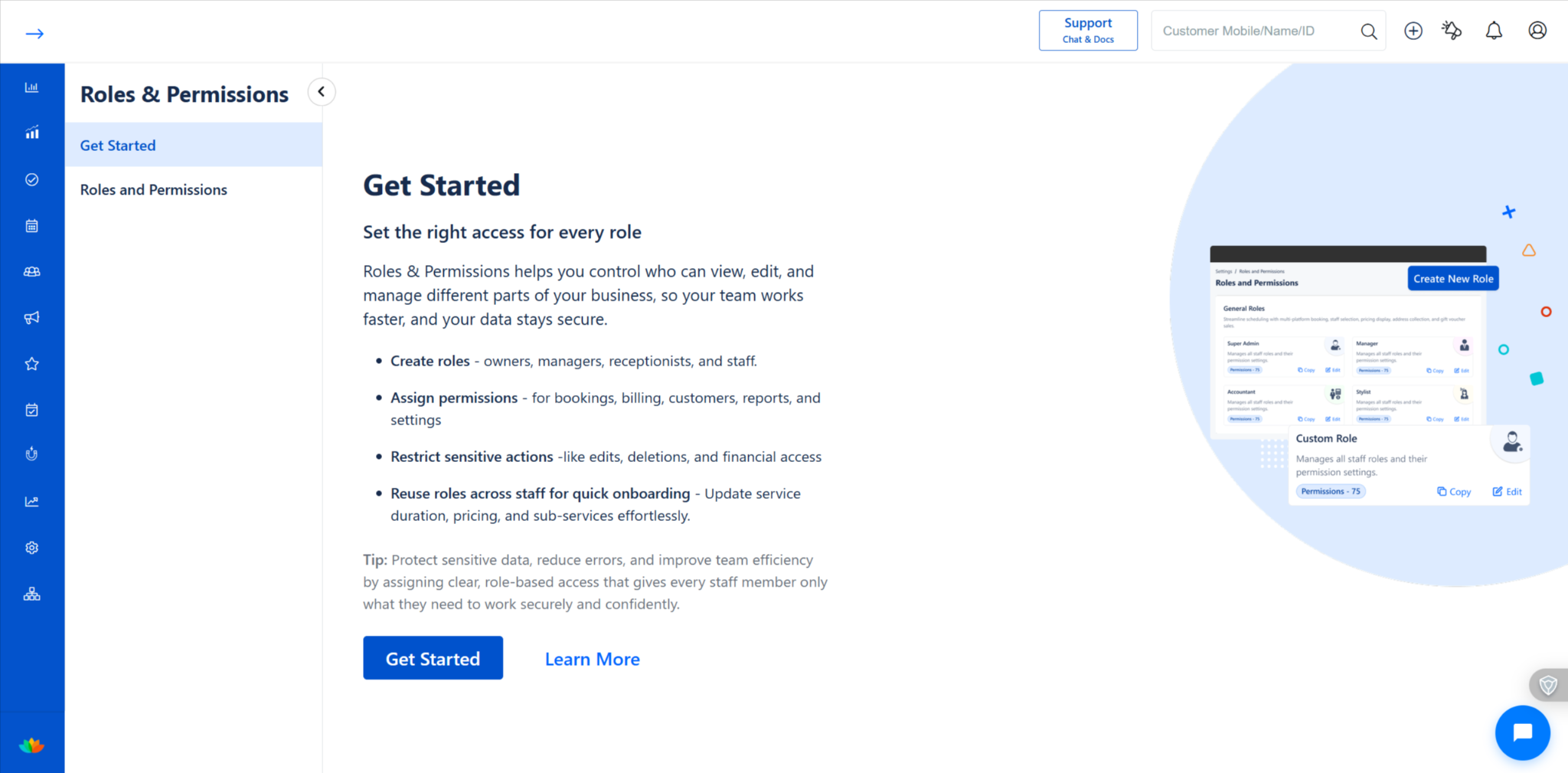
You will land on the Get Started screen with an overview of the feature. (See screenshot)
2. Create a New Role
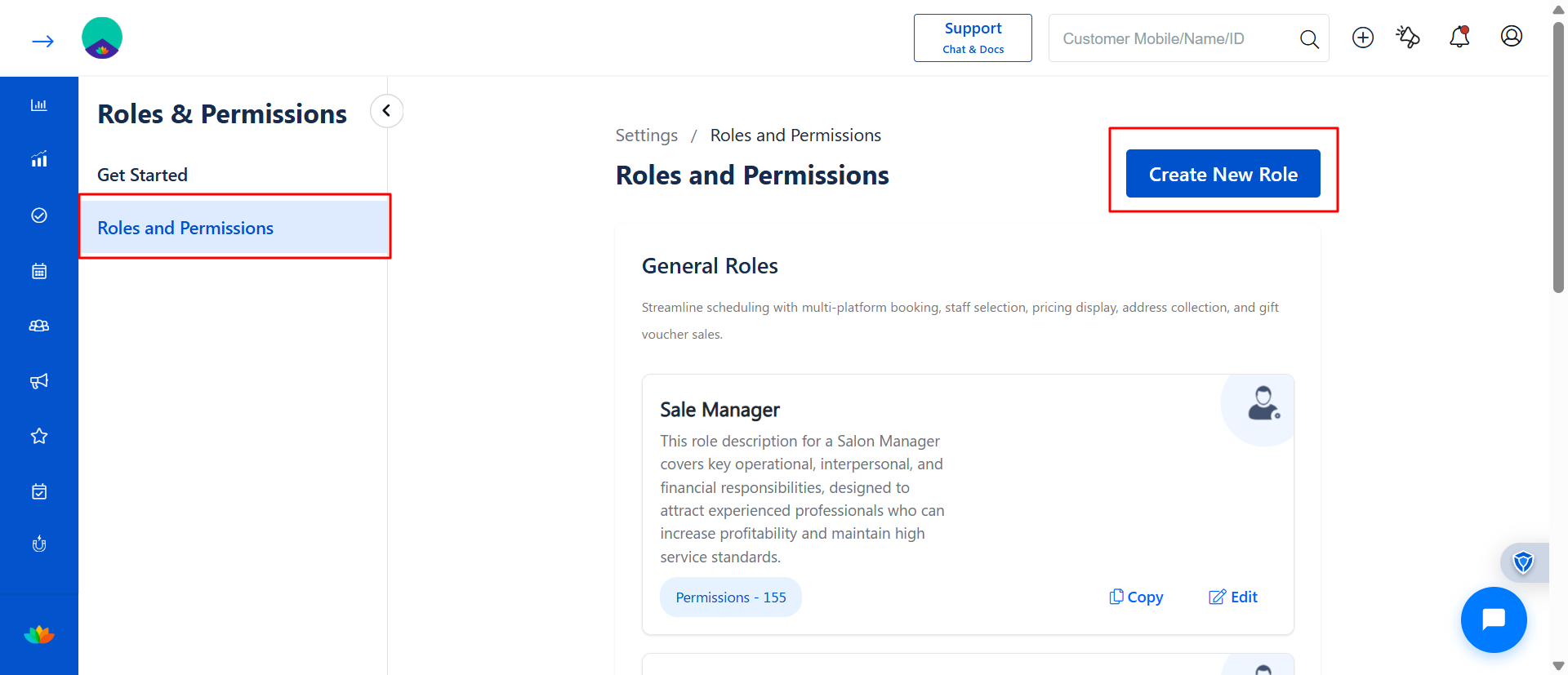
Click on Create New Role. (See screenshot)
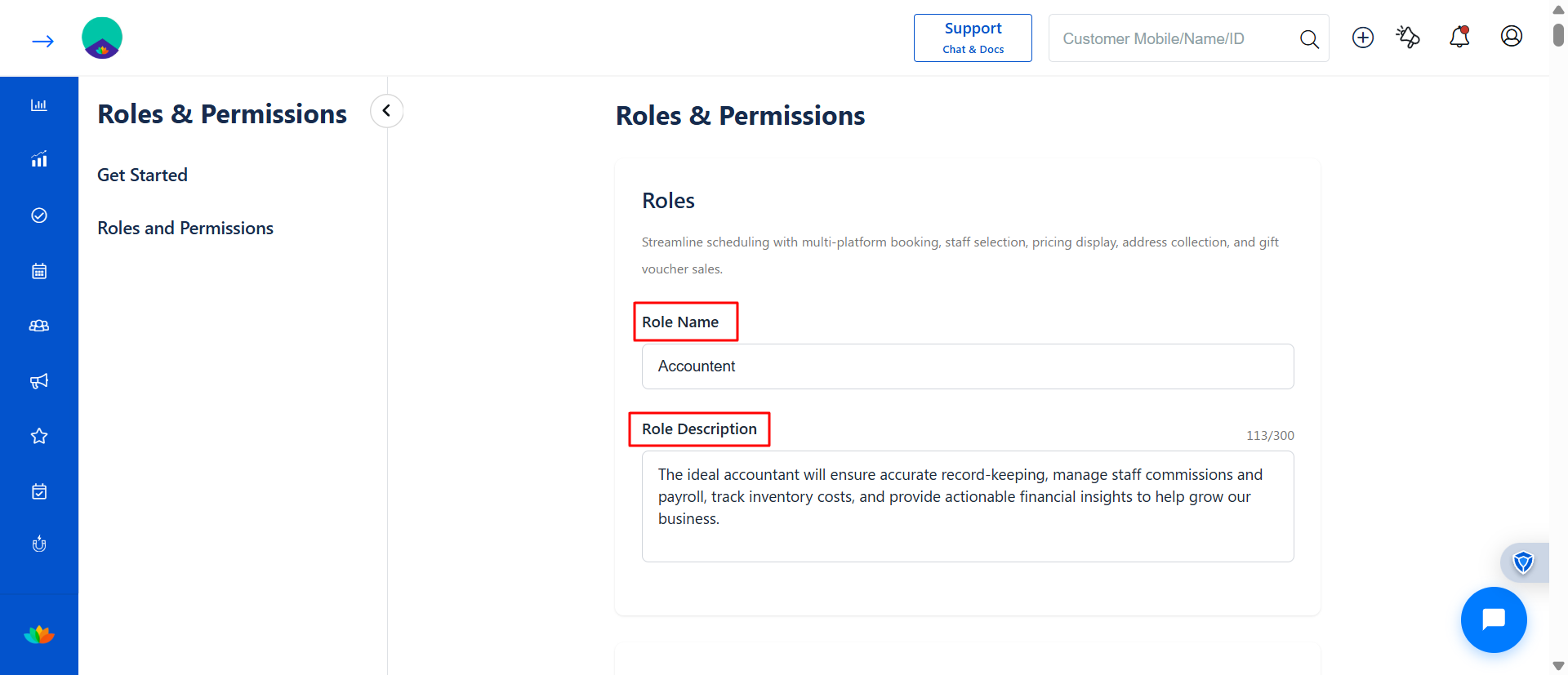
Enter the following details:
Role Name (e.g., Manager, Receptionist, Stylist)
Role Description (brief summary of responsibilities)
3. Configure Permissions
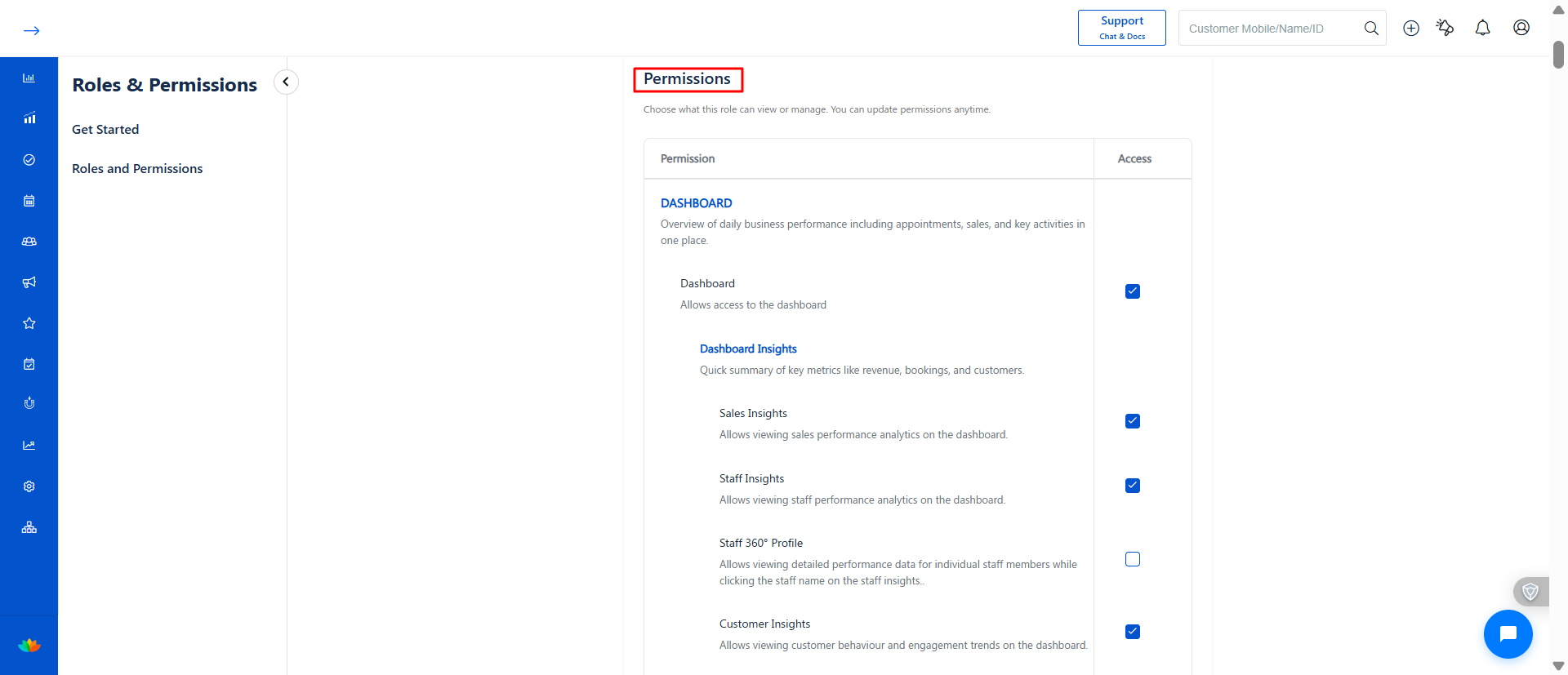
Scroll to the Permissions section. (See screenshot)
You will see different modules (e.g., Dashboard, Sales, Customers, etc.).
For each module:
Enable or disable access using checkboxes.
Grant only the required permissions for that role.
? Tip: Avoid giving full access unless necessary to maintain data security.
4. Save the Role
After selecting permissions, click Save.
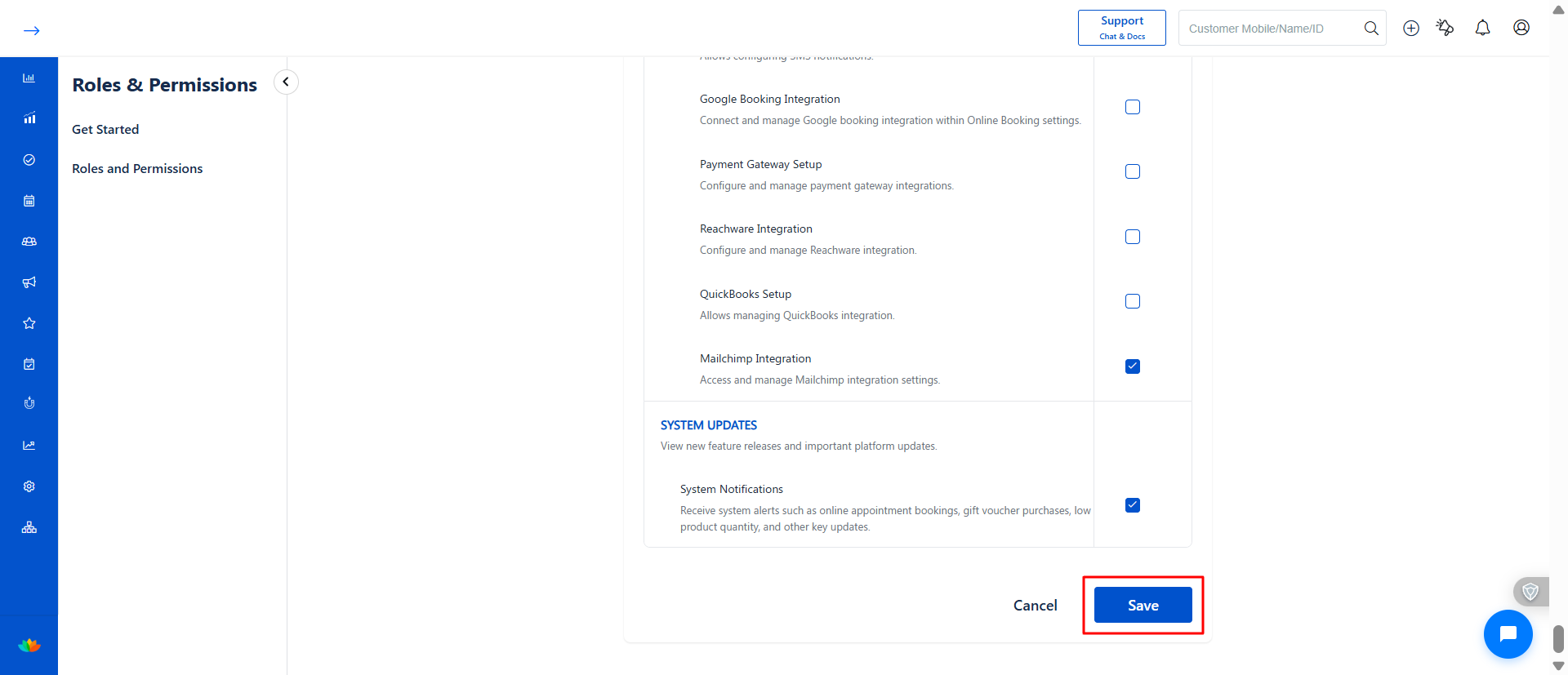
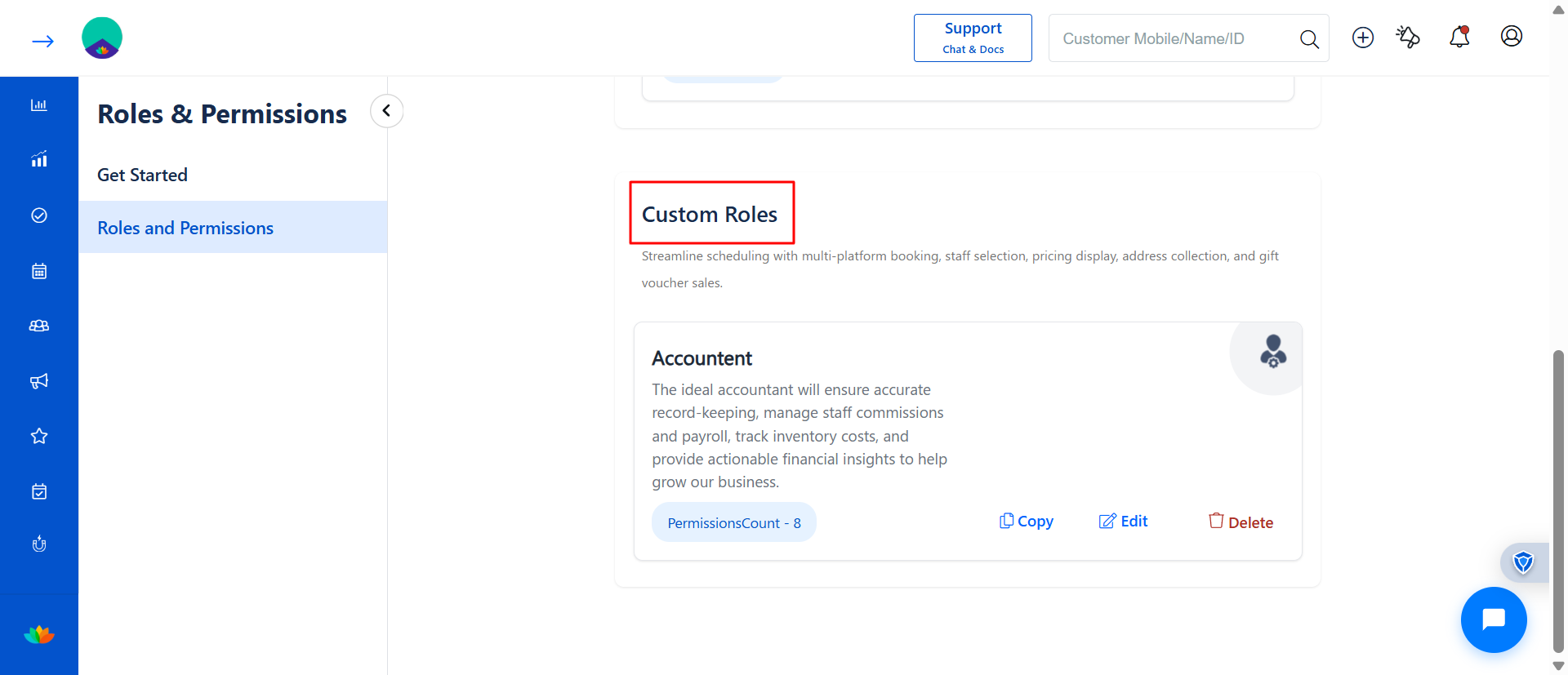
The role will now appear under Custom Roles. (See screenshot)
5. Manage Existing Roles
Under Custom Roles, you can:
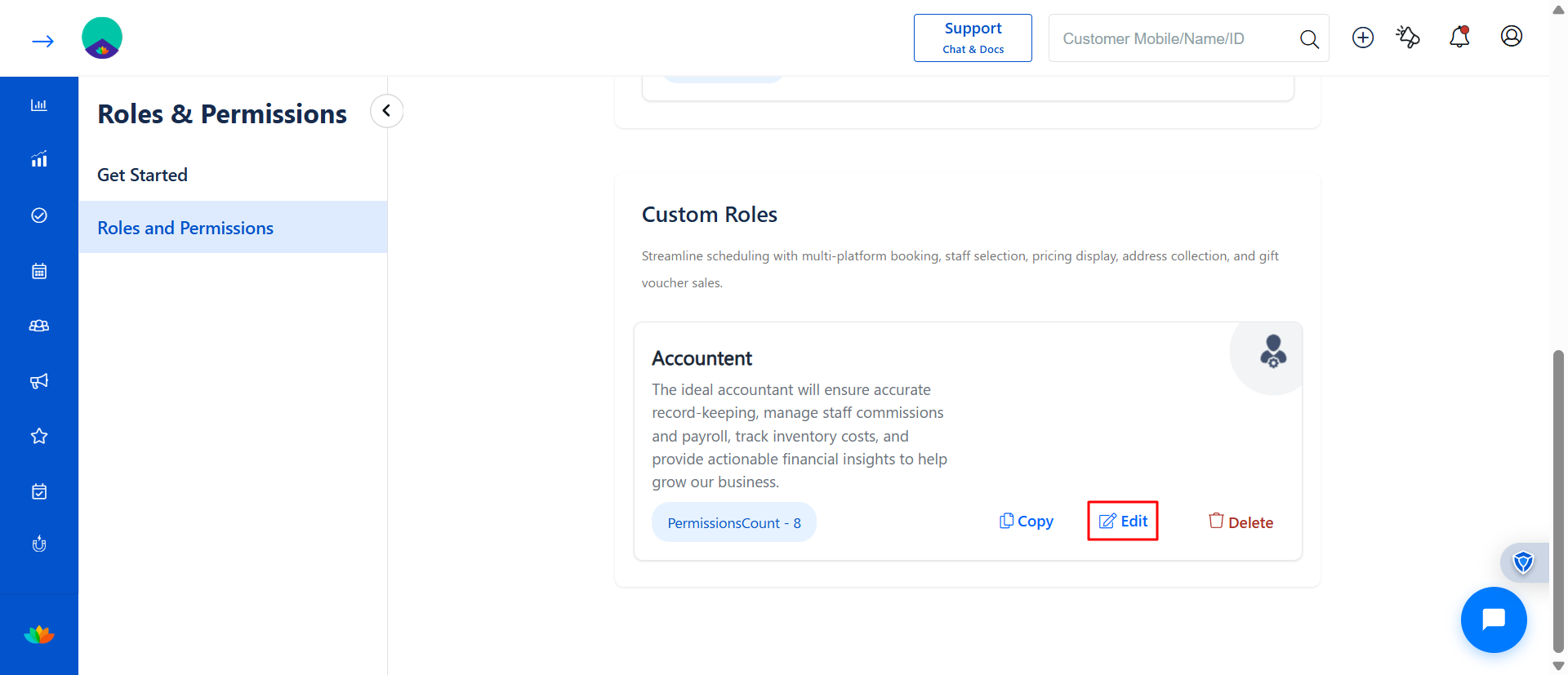
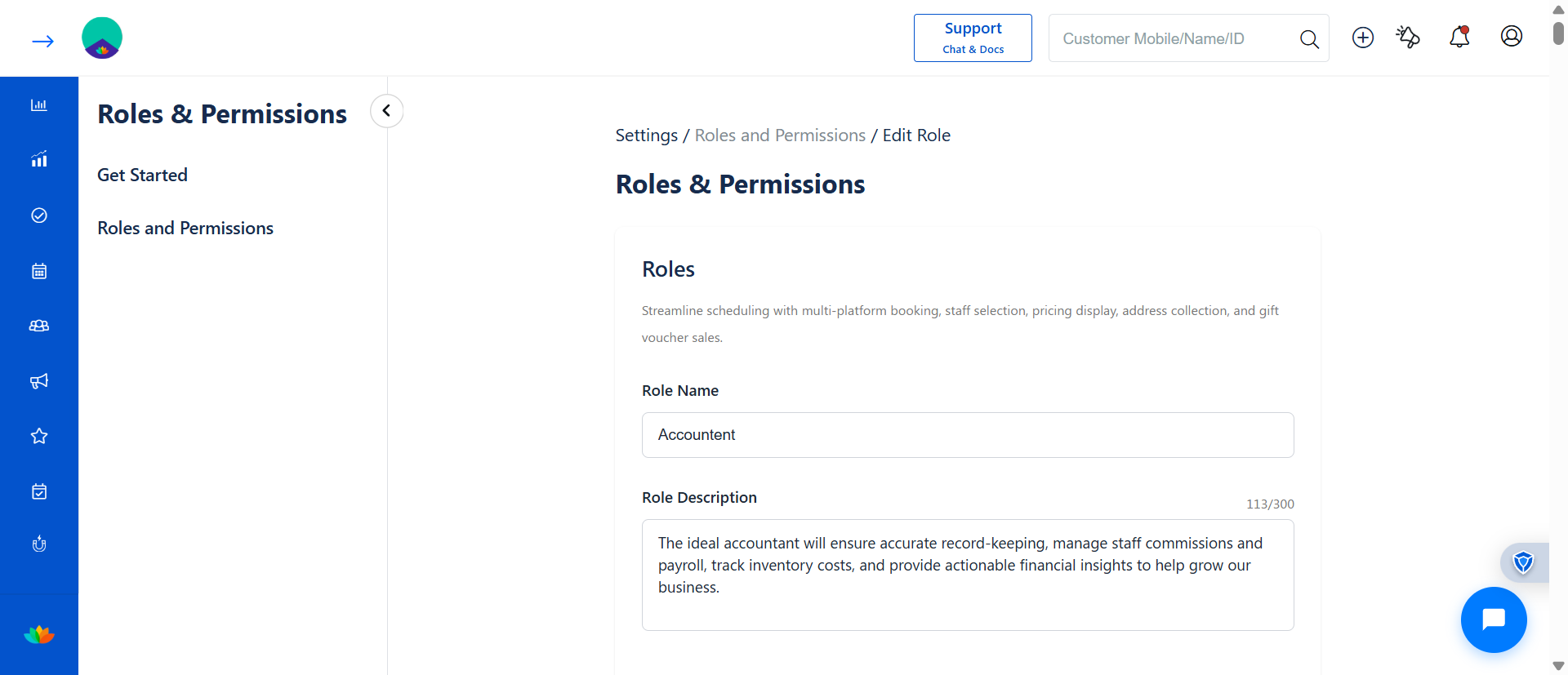
Edit Role
Edit a role to update its name, description, or permissions as your business needs change.
You can modify access levels at any time to ensure staff have the right level of control.
All updates are applied instantly to staff assigned to that role.
Copy Role
Duplicate an existing permissions for quicker setup
Using the Copy Option:
When you click Copy, all permissions from the selected role will be duplicated.
The Role Name and Description fields will be empty by default.
You must enter a new Role Name and Description before saving.
Duplicate role names are not allowed, so each role must have a unique name.
? This helps you quickly create similar roles while maintaining clear and unique role definitions.
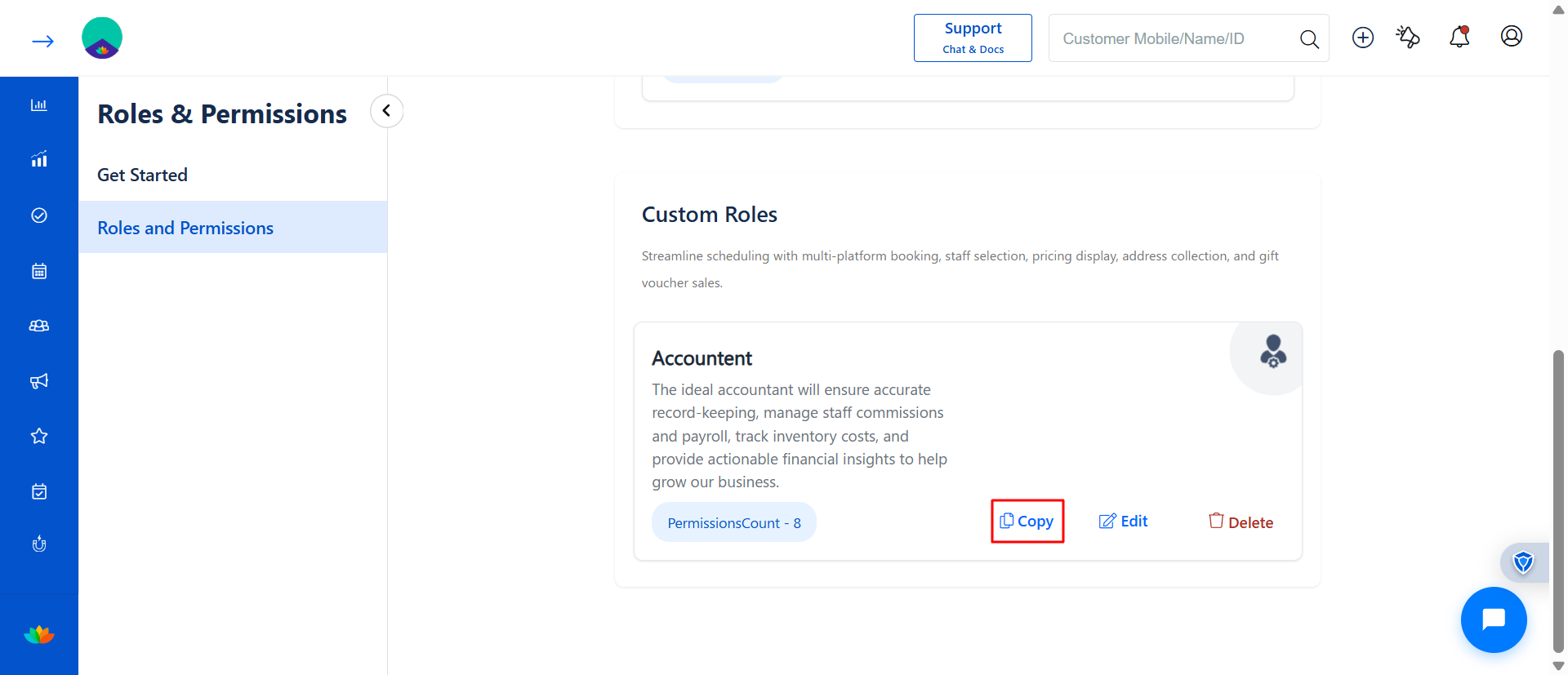
Delete Role
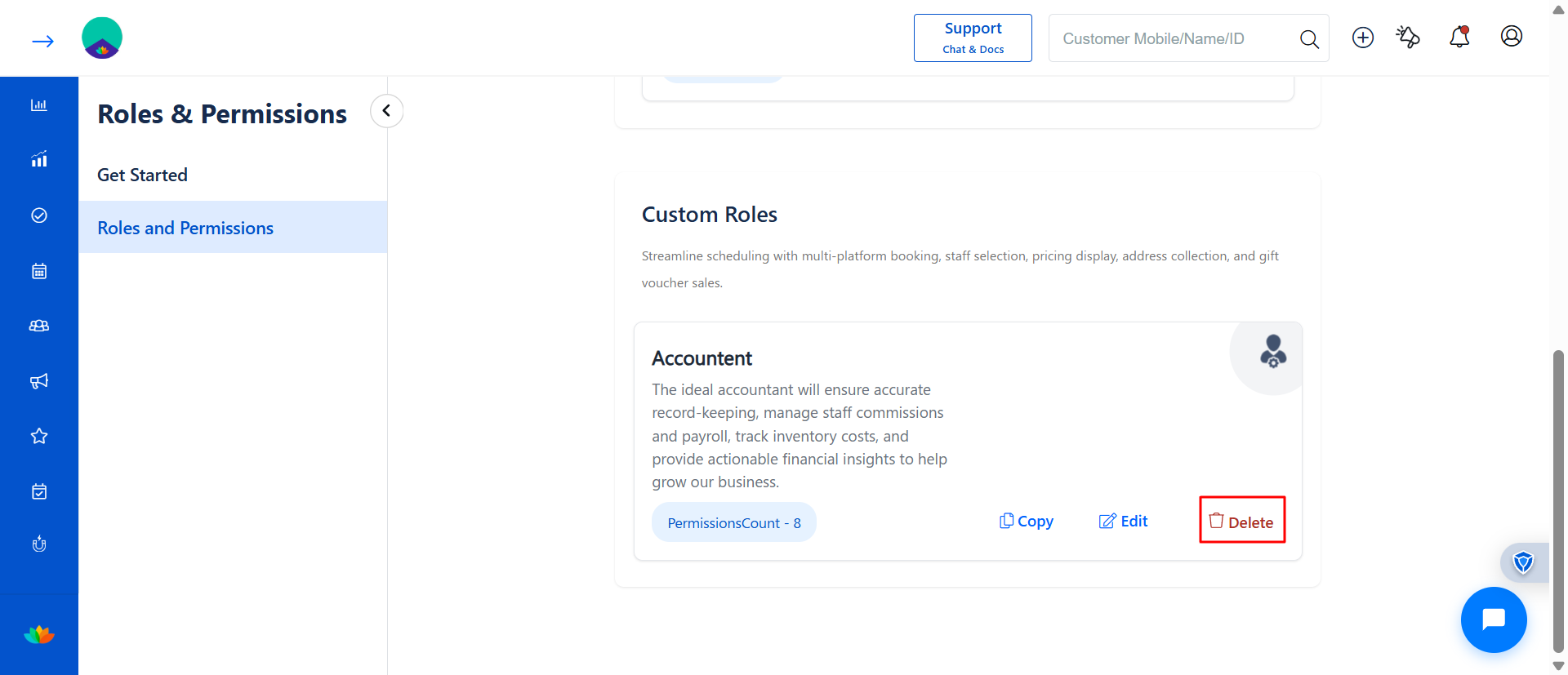
When you click Delete on a role, a confirmation popup appears to prevent accidental removal.
Steps to Delete a Role
Click on Delete for the required role under Custom Roles.
A Delete Confirmation popup will be displayed.
Review the warning message carefully:
Deleting the role will permanently remove it from the system.
Staff members assigned to this role will lose access based on its permissions.
Check the box:
“I understand that this action is permanent”Click Delete Role to confirm, or Cancel to go back.
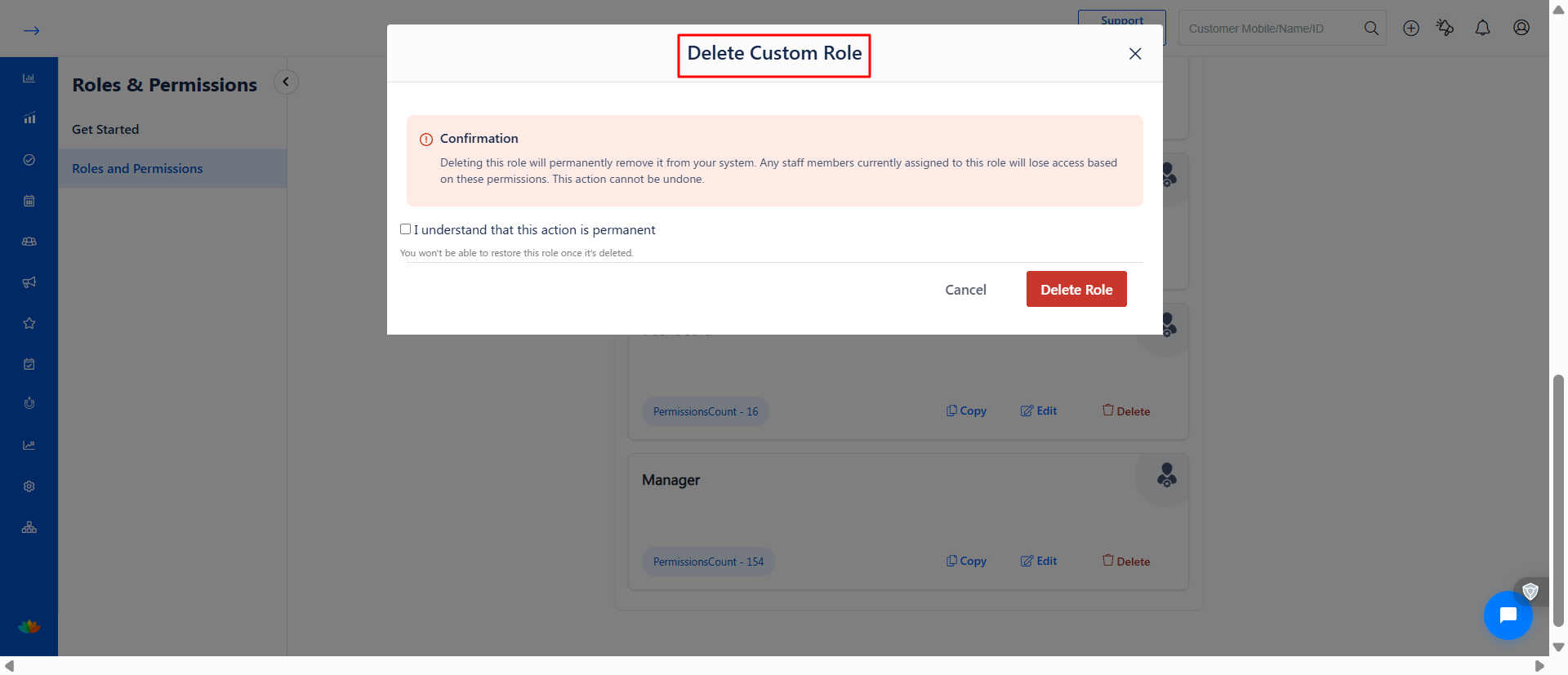
⚠️ Note: Deleting a role will remove access for all staff assigned to it and cannot be undone.
Use Cases
Define different access levels for managers, receptionists, and stylists
Restrict access to financial data or reports
Allow front desk staff to manage appointments without admin access
Standardize permissions across multiple staff members
Benefits
Improved Security – Prevent unauthorized access to sensitive data
Better Control – Clearly define responsibilities for each role
Faster Onboarding – Reuse roles instead of setting permissions manually
Operational Efficiency – Staff see only what they need, reducing confusion
- To learn more about Staff Access Control, assign roles, and permissions, refer to the detailed guide below:
How to Assing the Role for Staff Users
Was this article helpful?
That’s Great!
Thank you for your feedback
Sorry! We couldn't be helpful
Thank you for your feedback
Feedback sent
We appreciate your effort and will try to fix the article