Overview
The Invoice/Receipt for Past Dates setting controls whether users can create or edit invoices and receipts with a past date. By default, this setting is disabled, preventing all users from generating backdated invoices or receipts during billing. Admin users can enable this setting from the Invoice Configuration to allow past date billing when needed. For staff users, an additional permission must be granted under Billing Controls in Roles and Permissions. This two-layer access ensures that only authorized team members can generate backdated invoices, helping maintain accurate financial records and preventing unauthorized changes to past billing entries.
Navigation Path
Settings → Business Settings → Point of Sale → Invoice
Go to Settings from the left sidebar.
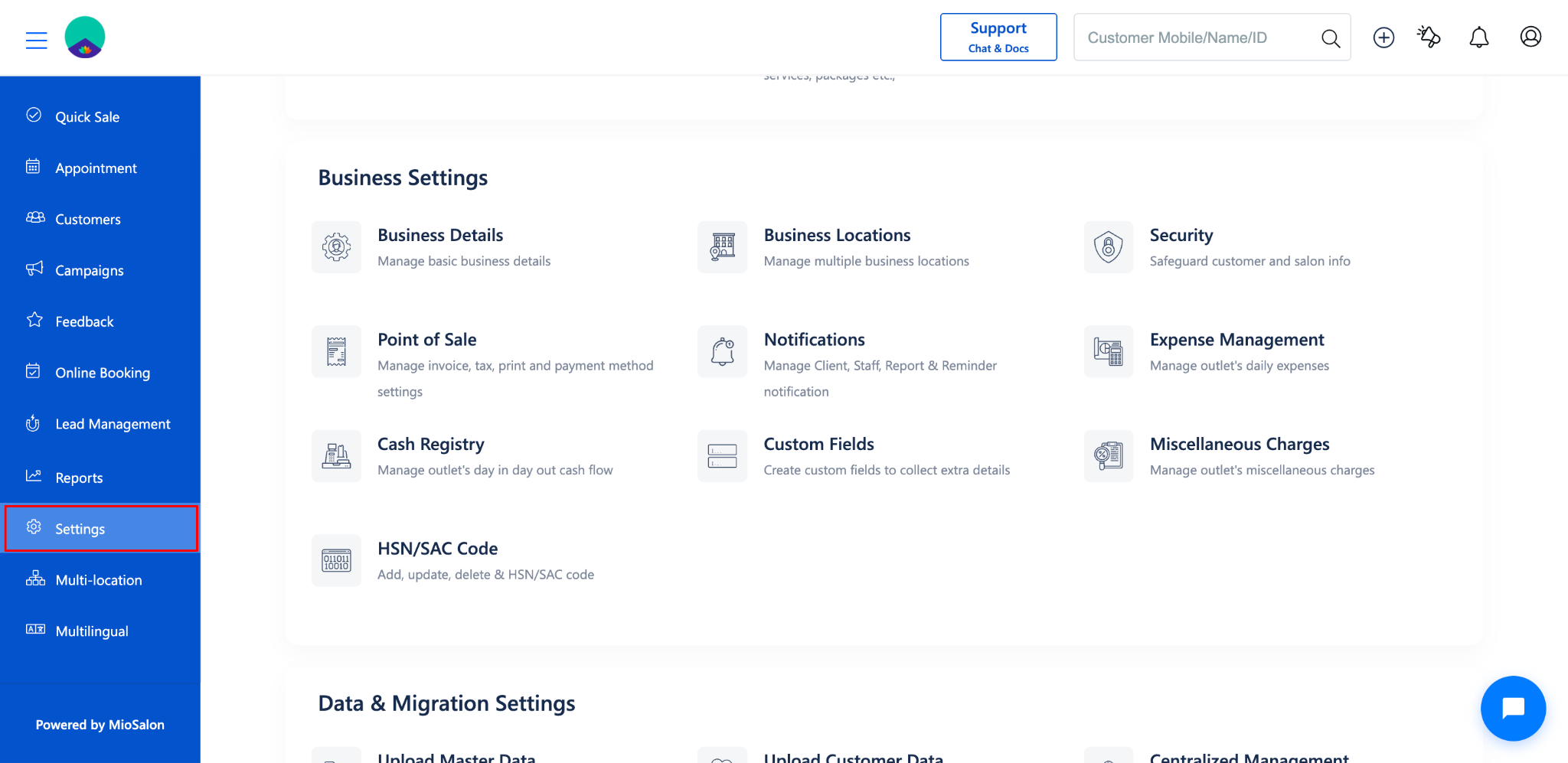
Under Business Settings, click Point of Sale.
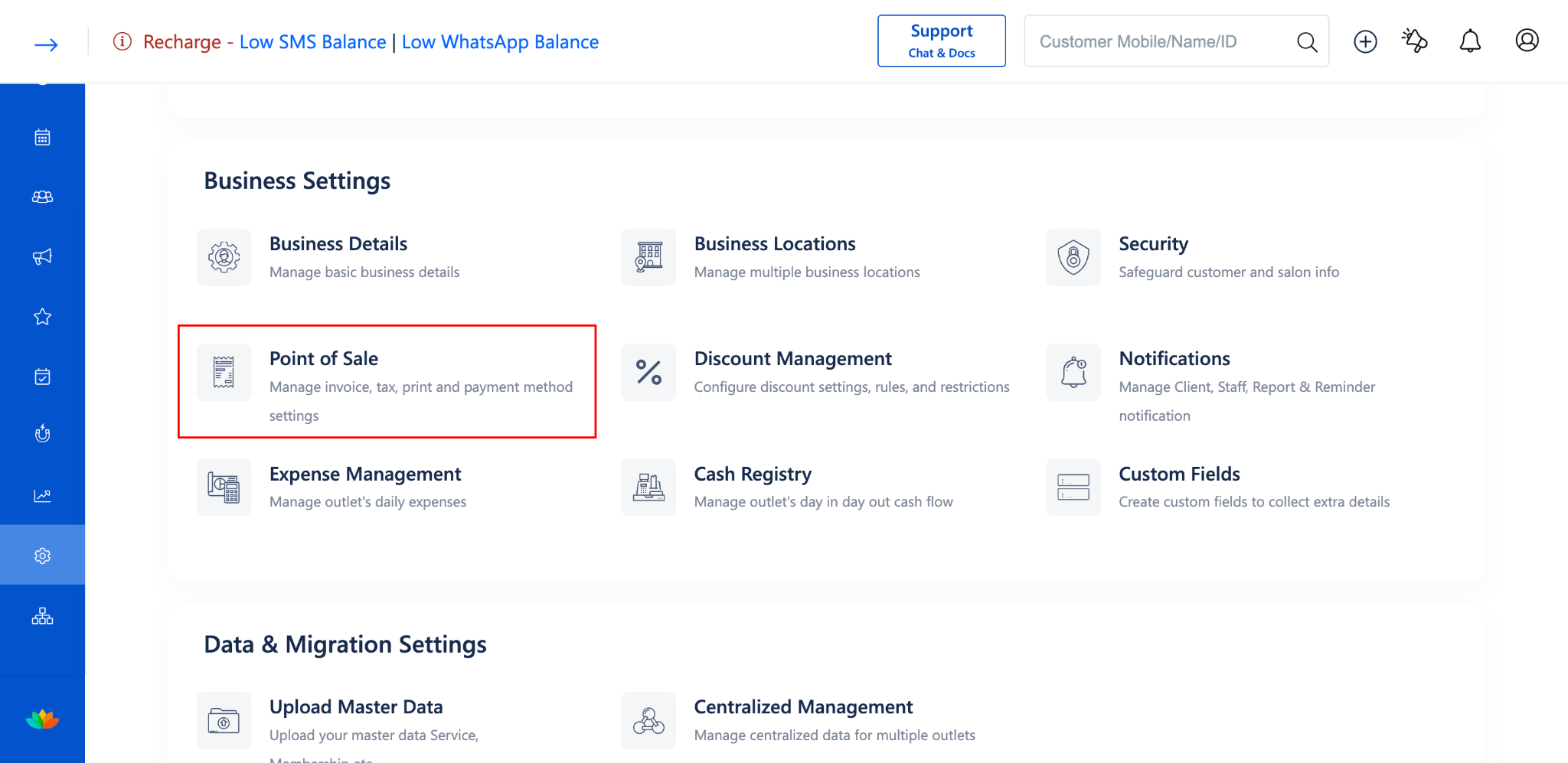
Select Invoice from the left menu.
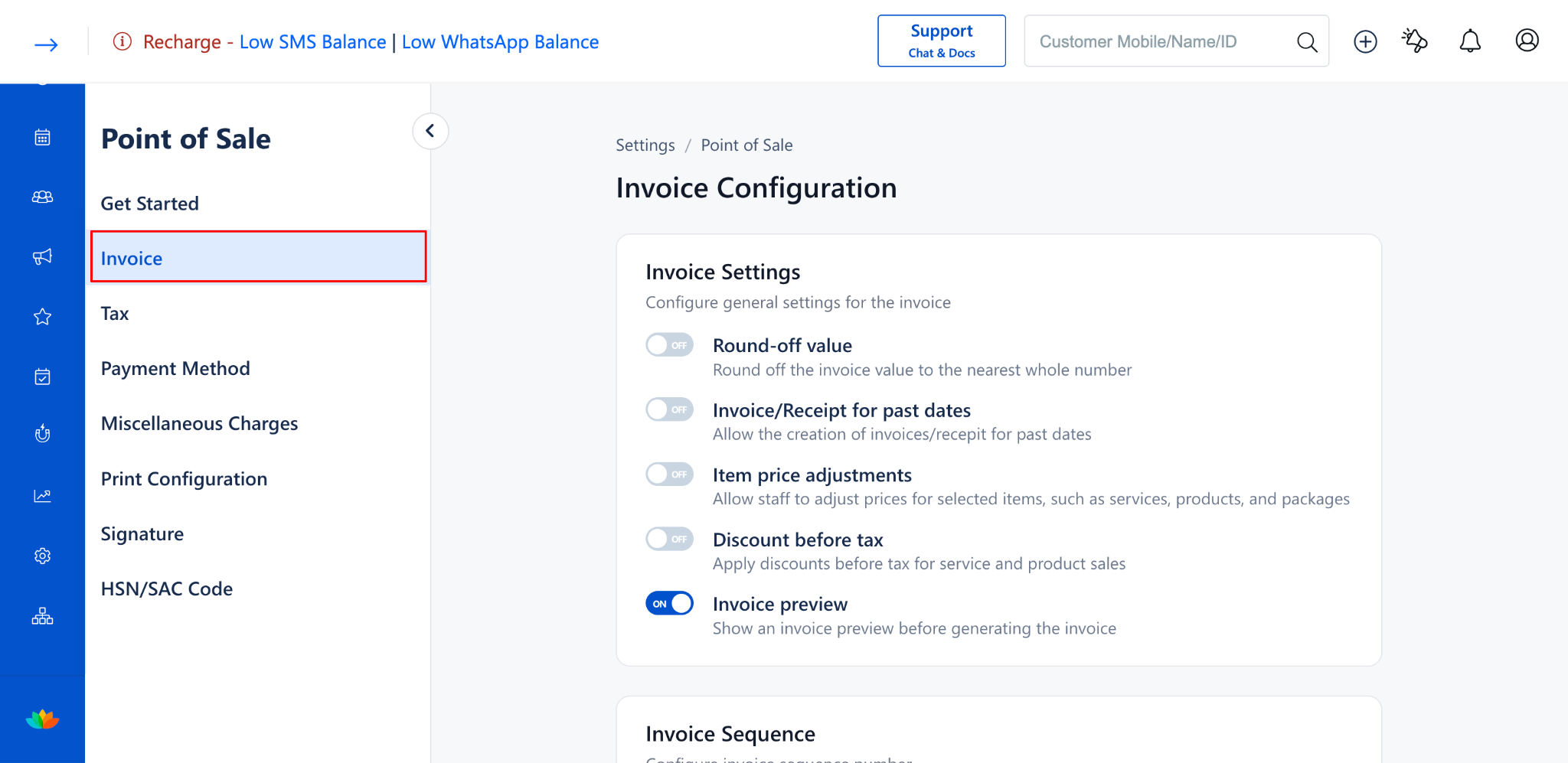
Locate the Invoice/Receipt for past dates toggle under the Invoice Settings section.
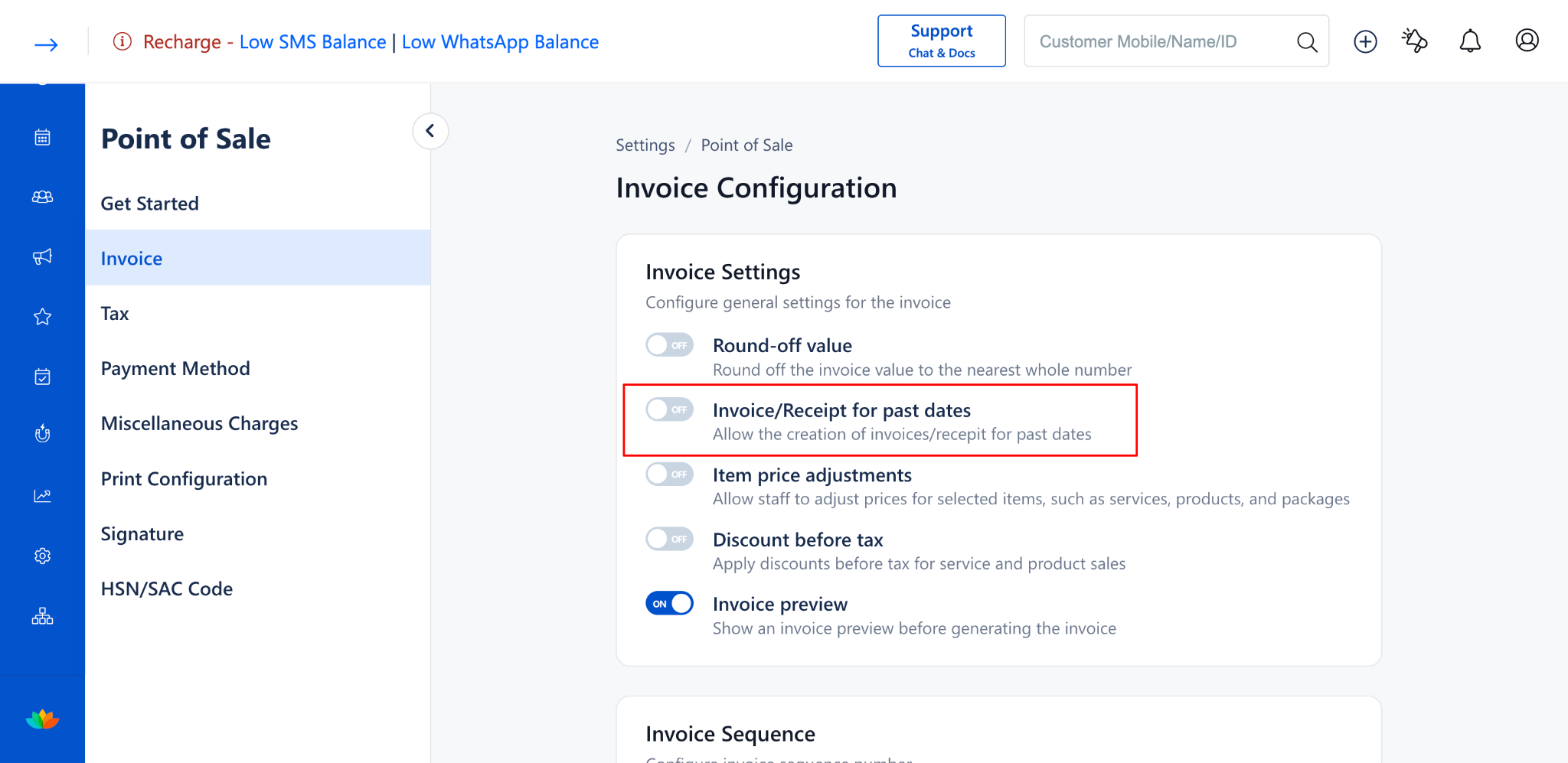
To Enable or Disable Invoice/Receipt for Past Dates for Admin users
Enable the Setting
Navigate to Invoice under Point of Sale Settings.
Locate the Invoice/Receipt for past dates toggle under the Invoice Settings section.
Toggle it ON to allow creating and editing invoices/receipts with a past date.
Click Save to apply the changes.
Disable the Setting
Navigate to Invoice under Point of Sale Settings.
Locate the Invoice/Receipt for past dates toggle.
Toggle it OFF to restrict users from creating or editing invoices/receipts with a past date.
Click Save to apply the changes.
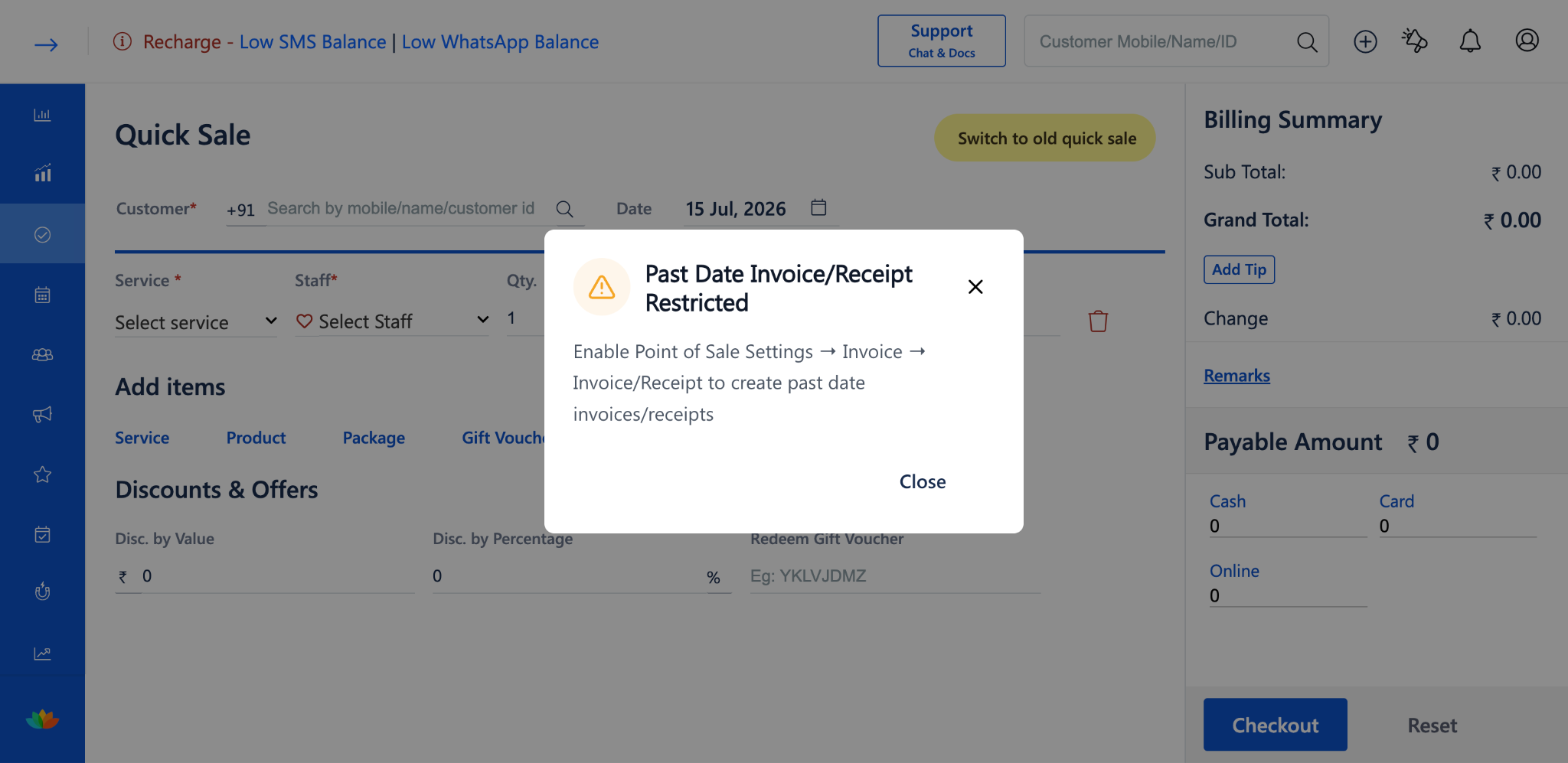
Note: When this setting is disabled and a user tries to select a past date while creating an invoice or receipt, a "Past Date Invoice/Receipt Restricted" warning message will appear. The message will guide the user to enable the setting from Point of Sale Settings.
How It Works for Admin and Staff Users
Admin Login
The Admin can enable or disable the Invoice/Receipt for past dates toggle from the Invoice Configuration.
When the toggle is ON, the Admin can create and edit invoices/receipts with a past date.
When the toggle is OFF, the Admin cannot select a past date during invoice or receipt creation.
Staff Login
Staff users must satisfy two conditions to create or edit invoices/receipts with a past date:
The Invoice/Receipt for past dates toggle must be enabled in Invoice Settings under Point of Sale.
The Allow Past Date Invoice/Receipt permission must be enabled for the respective staff member under Roles and Permissions. (See Screenshot 4)
If either condition is not met, the staff user will not be able to create or edit invoices/receipts with a past date.
Behavior Comparison: Admin vs Staff
How to Enable Staff Permission for Past Date Invoice/Receipt
Go to Settings from the left sidebar.
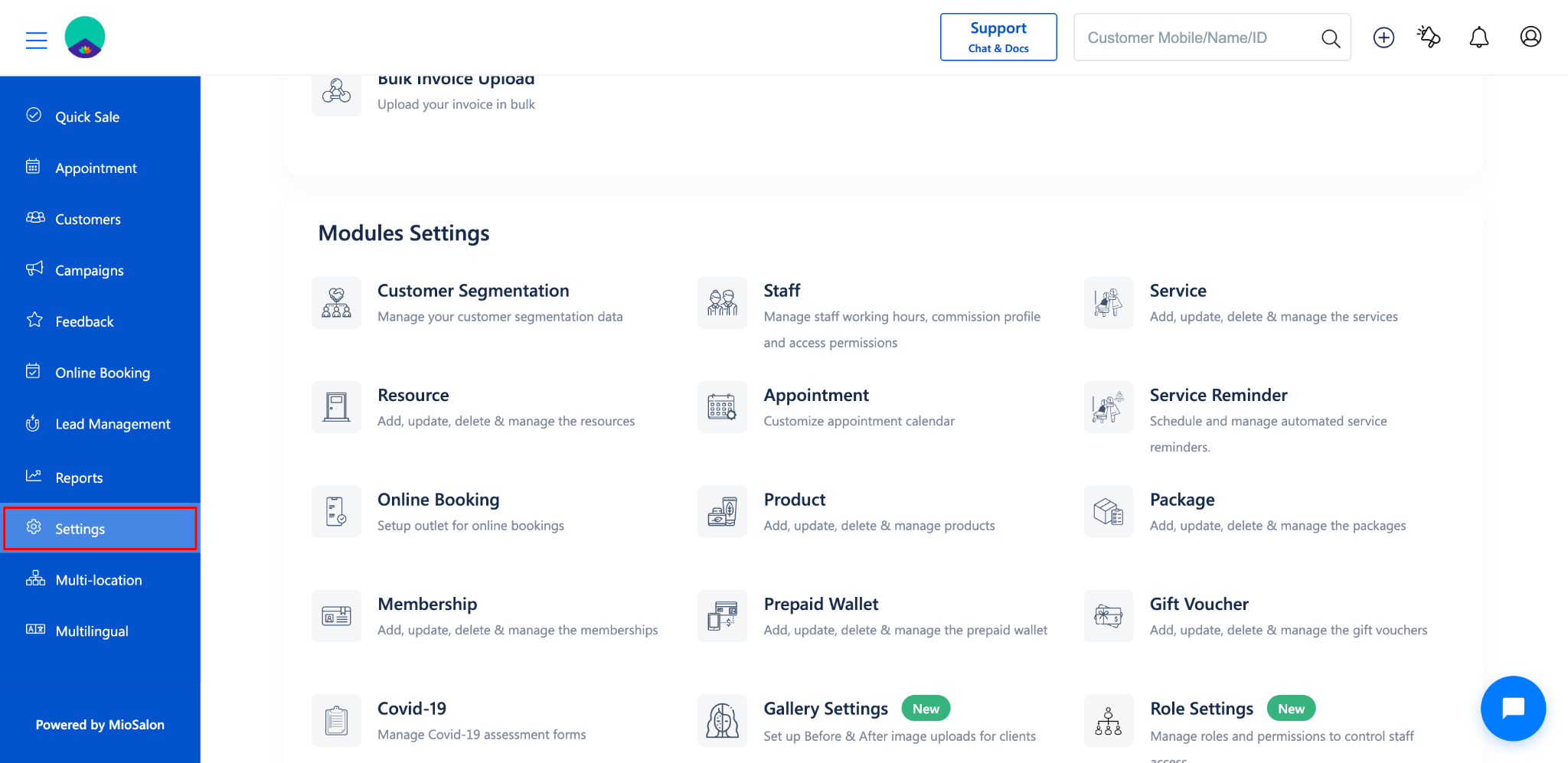
Under Modules Settings, click Staff.
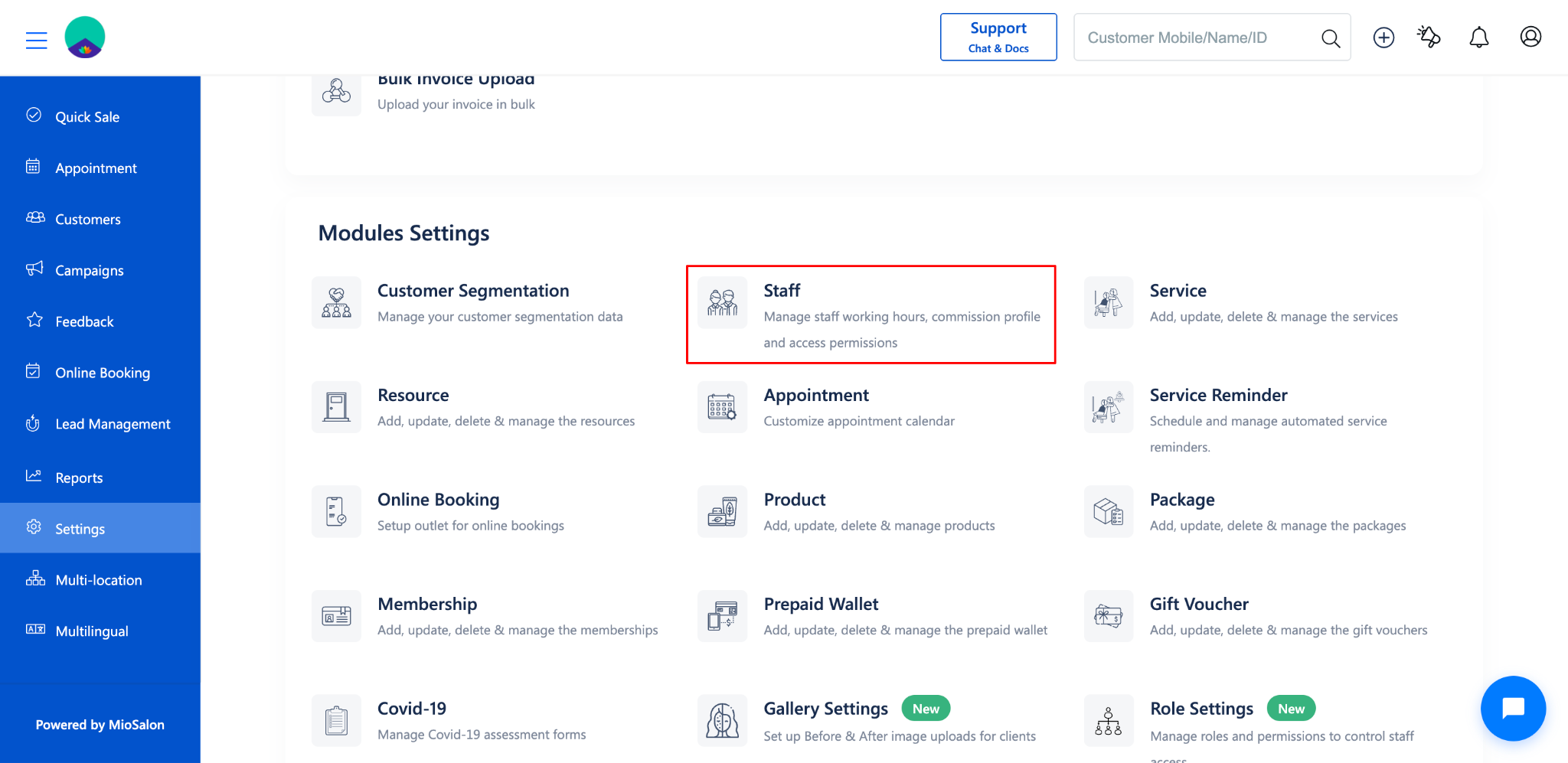
Select the staff member you want to grant access to.
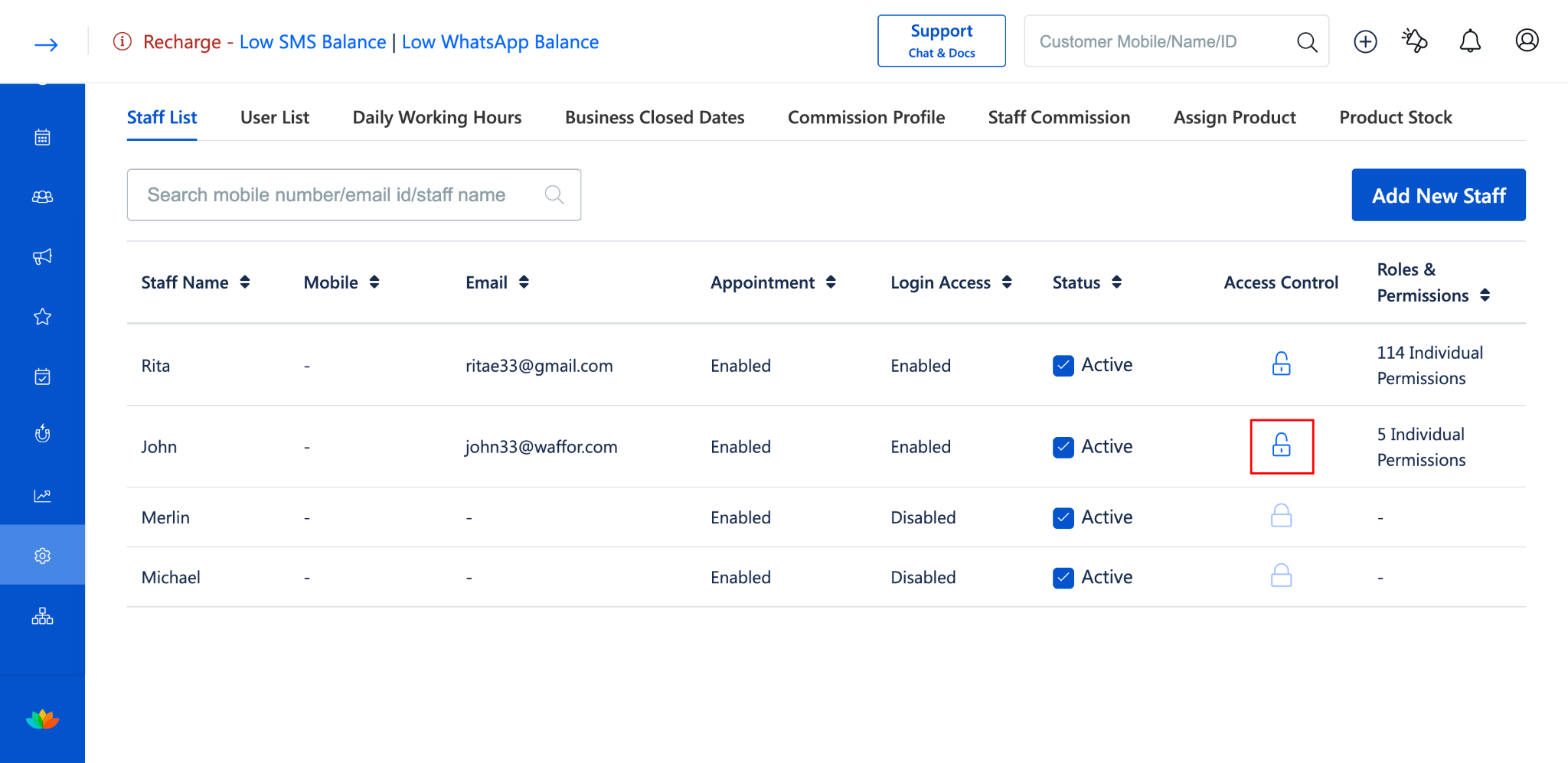
Click on Roles & Permissions to open the Assign Roles & Permissions dialog.
Scroll to the BILLING section.
Under Billing Controls, locate the Allow Past Date Invoice/Receipt checkbox.
Check the box to allow the staff member to create and edit invoices/receipts with a past date.
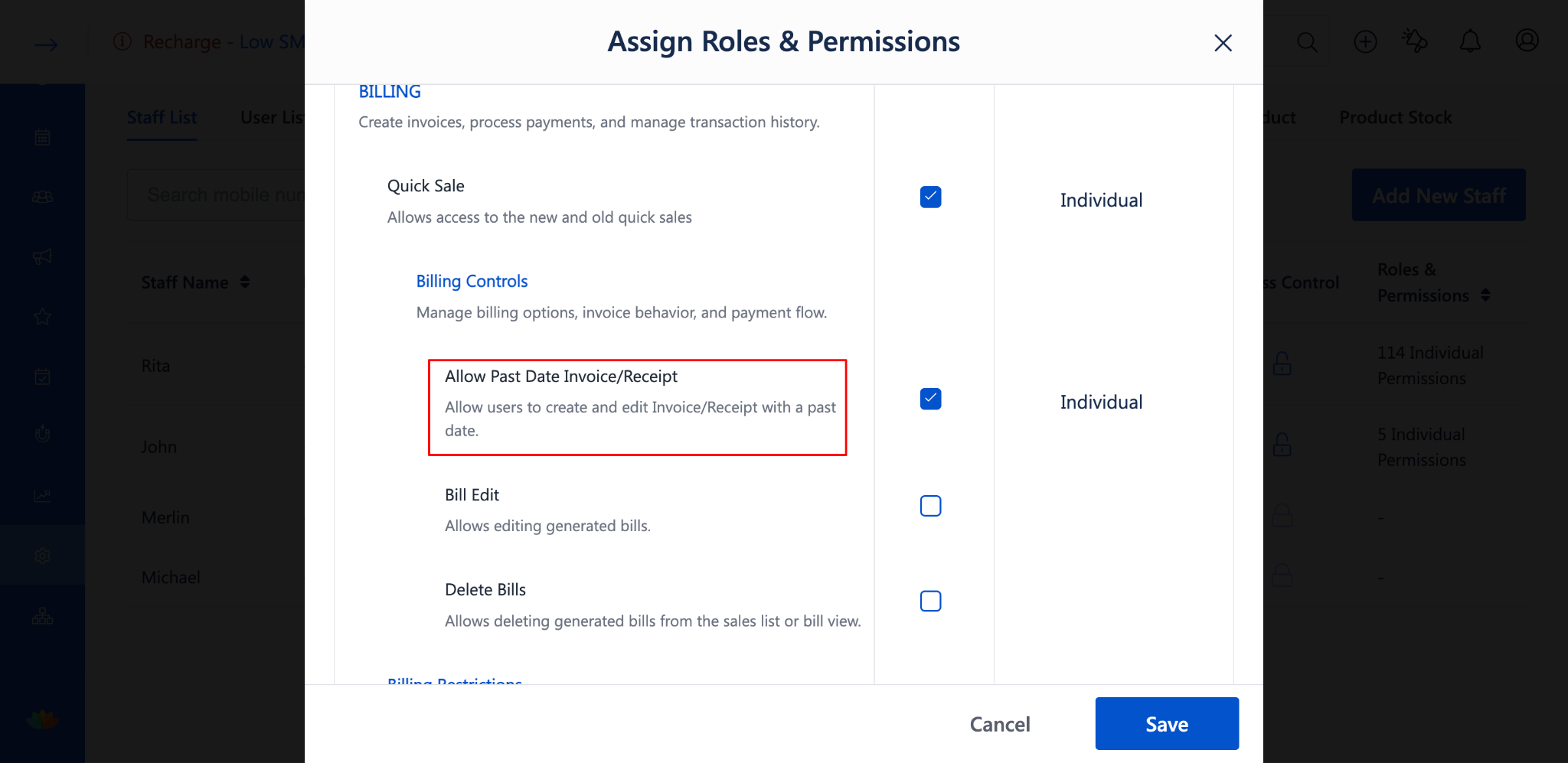
Click Save to apply the changes.
Note: Even after enabling the staff permission, the Invoice/Receipt for past dates toggle in Invoice Settings (from Admin User) must also be enabled. Both conditions must be satisfied for staff users.
Restriction Behavior
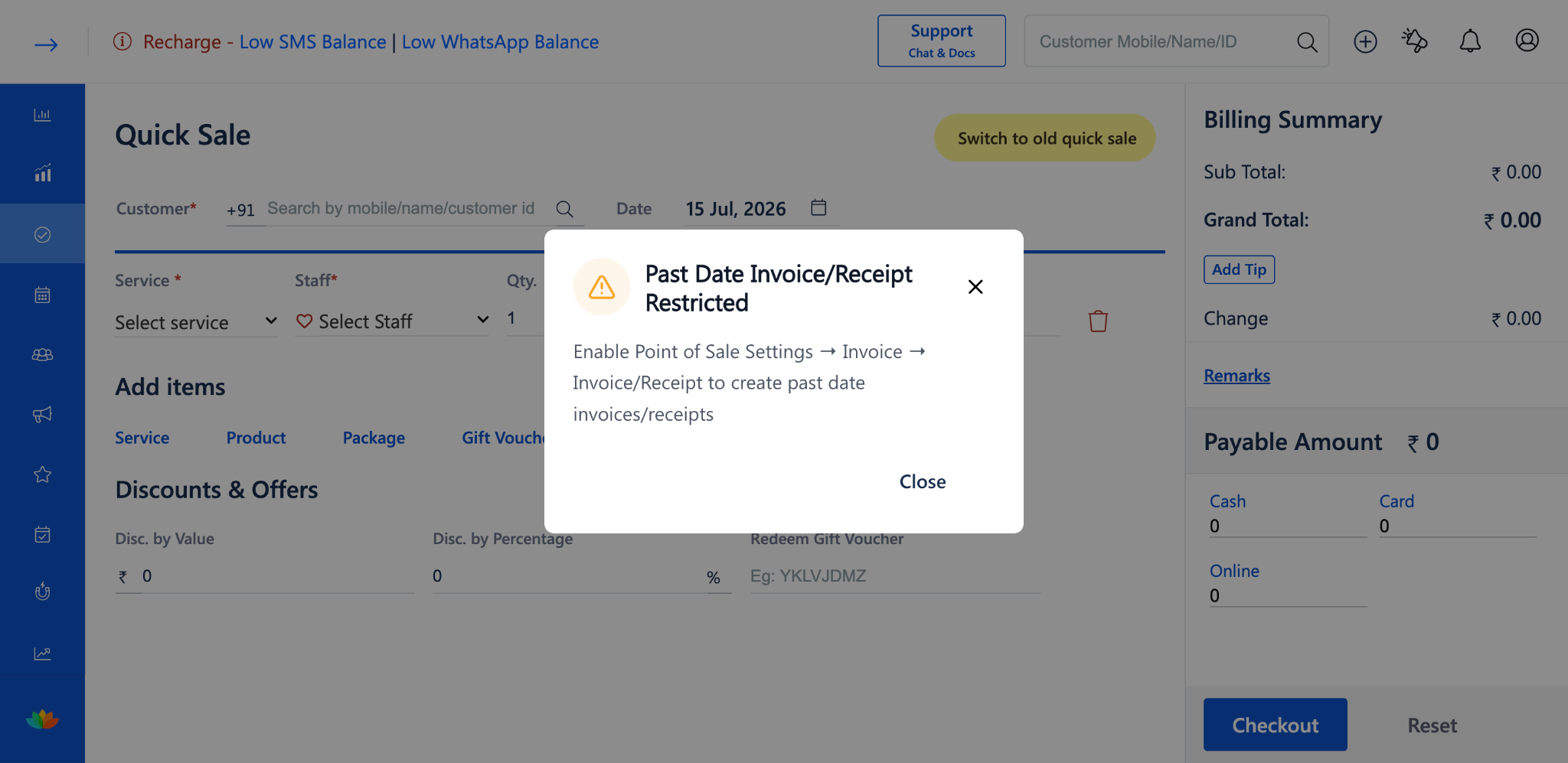
When a user (Admin or Staff) tries to select a past date while creating an invoice or receipt and the required conditions are not met, a Past Date Invoice/Receipt Restricted warning dialog will appear.
The warning message for Admin users: "Enable Point of Sale Settings > Invoice > Invoice/Receipt to create past date invoices/receipts."
The warning message for Staff users: "To create past date invoices/recepit, ask your administrator to enable Point of Sale Settings → Invoice → Invoice/Receipt and grant Staff Permissions on Allow Past Date Invoice/Receipt access."
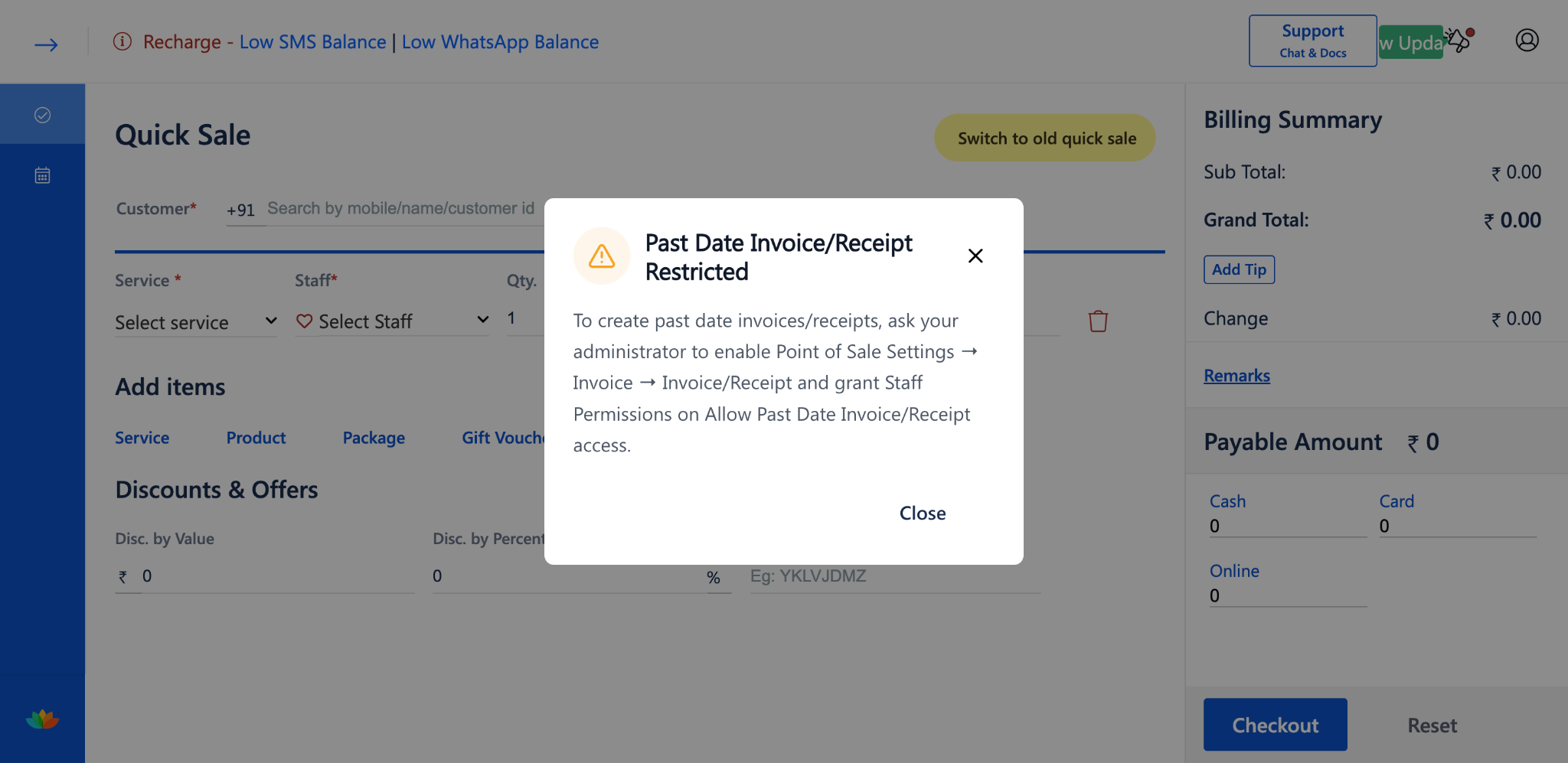
Click Close to dismiss the dialog and select a valid date.
Use Cases
Salon correcting missed billing entries: Enable the toggle to allow the front desk to generate invoices for services that were completed but not billed on the same day.
Controlled access for staff: Keep the toggle enabled but restrict staff permission so only managers or senior staff can create backdated invoices/receipts.
Strict financial record-keeping: Keep the toggle disabled to ensure all invoices and receipts are generated for the current date only, maintaining clean billing records.
Multi-branch business: Enable the toggle with selective staff permissions to allow branch managers to handle backdated billing while restricting regular staff.
Benefits
Maintain accurate billing records by controlling who can create or modify past date invoices and receipts.
Provide flexibility for businesses that need to log missed or delayed billing entries.
Add a second layer of control through staff-level permissions under Billing Controls, ensuring only authorized personnel can backdate invoices.
Reduce unauthorized or accidental changes to past billing data.
Keep a clean and reliable financial history for reporting and auditing purposes.
Was this article helpful?
That’s Great!
Thank you for your feedback
Sorry! We couldn't be helpful
Thank you for your feedback
Feedback sent
We appreciate your effort and will try to fix the article