Assign Roles & Permissions to Staff
This feature allows you to assign predefined roles and customize individual permissions for each staff member. It ensures the right level of access while maintaining flexibility and control.
Navigation Path
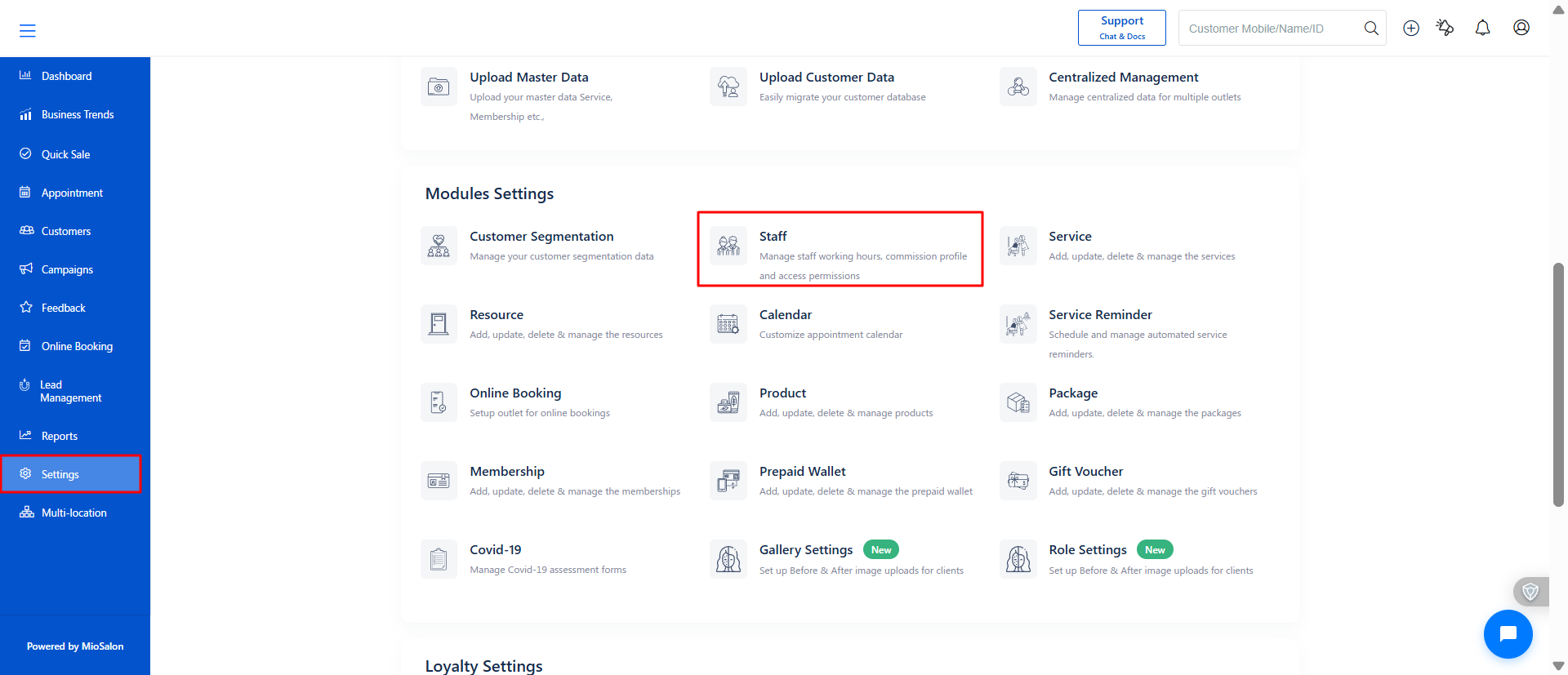
Settings → Staff → Staff List
Step-by-Step Guide
1. Open Assign Role Popup
Go to Staff List under Settings.
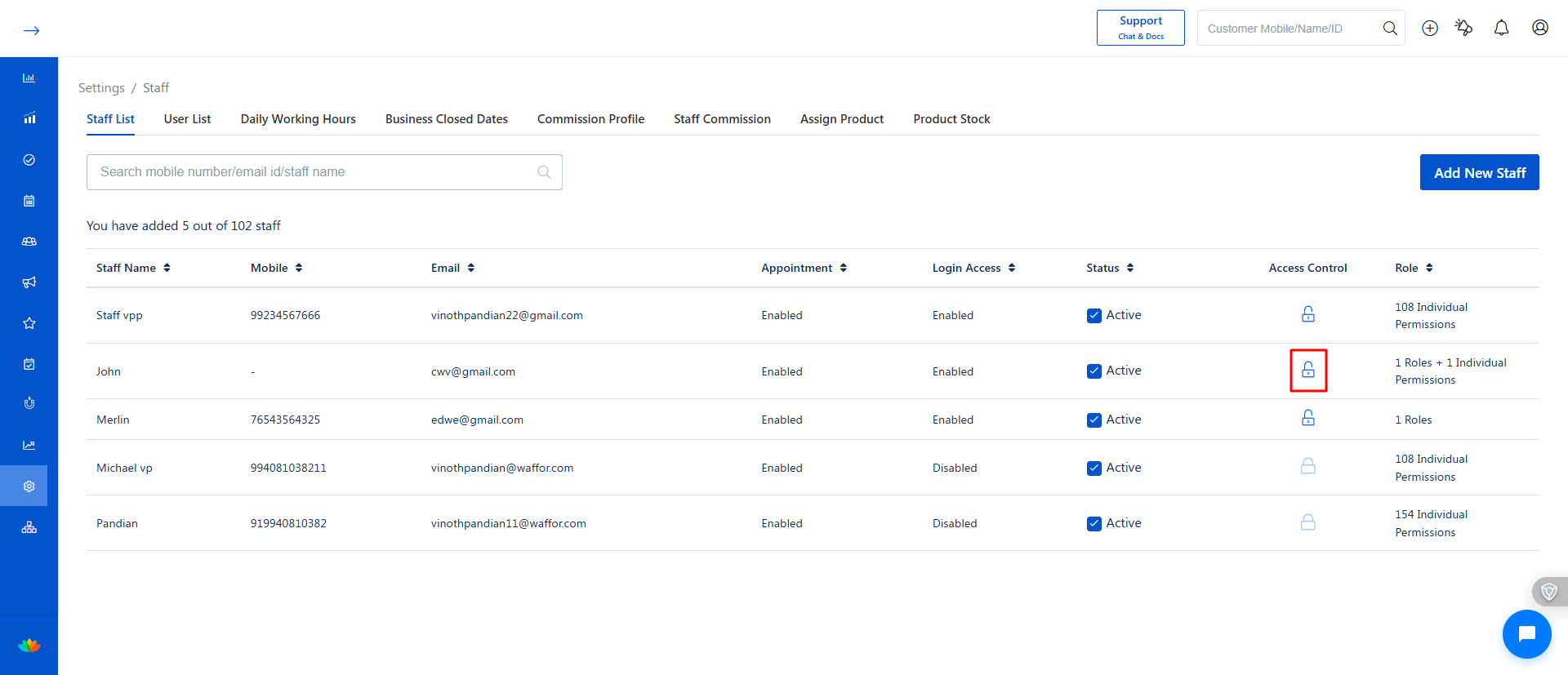
Locate the staff member.
Click on the Lock icon under Access Control. (See screenshot)
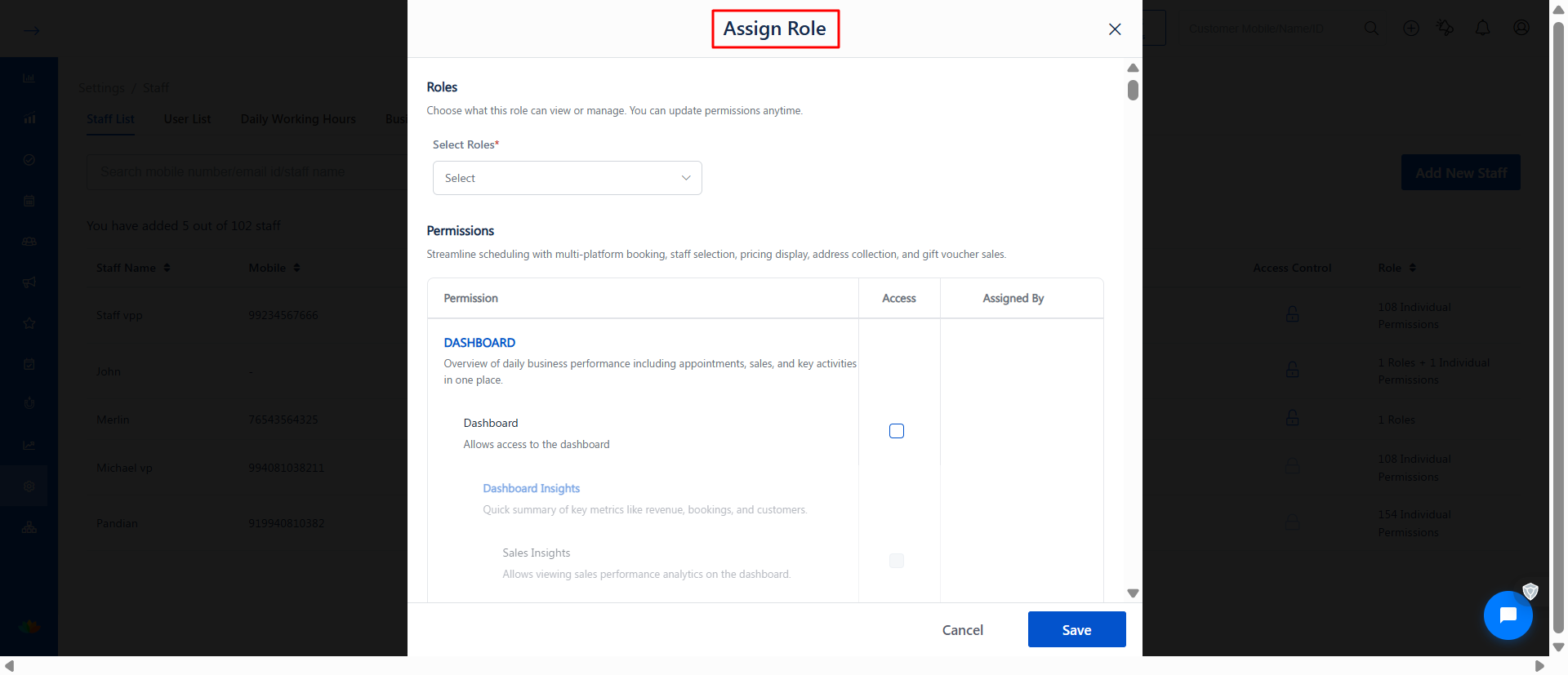
The Assign Role popup will open.
2. Select Role for Staff
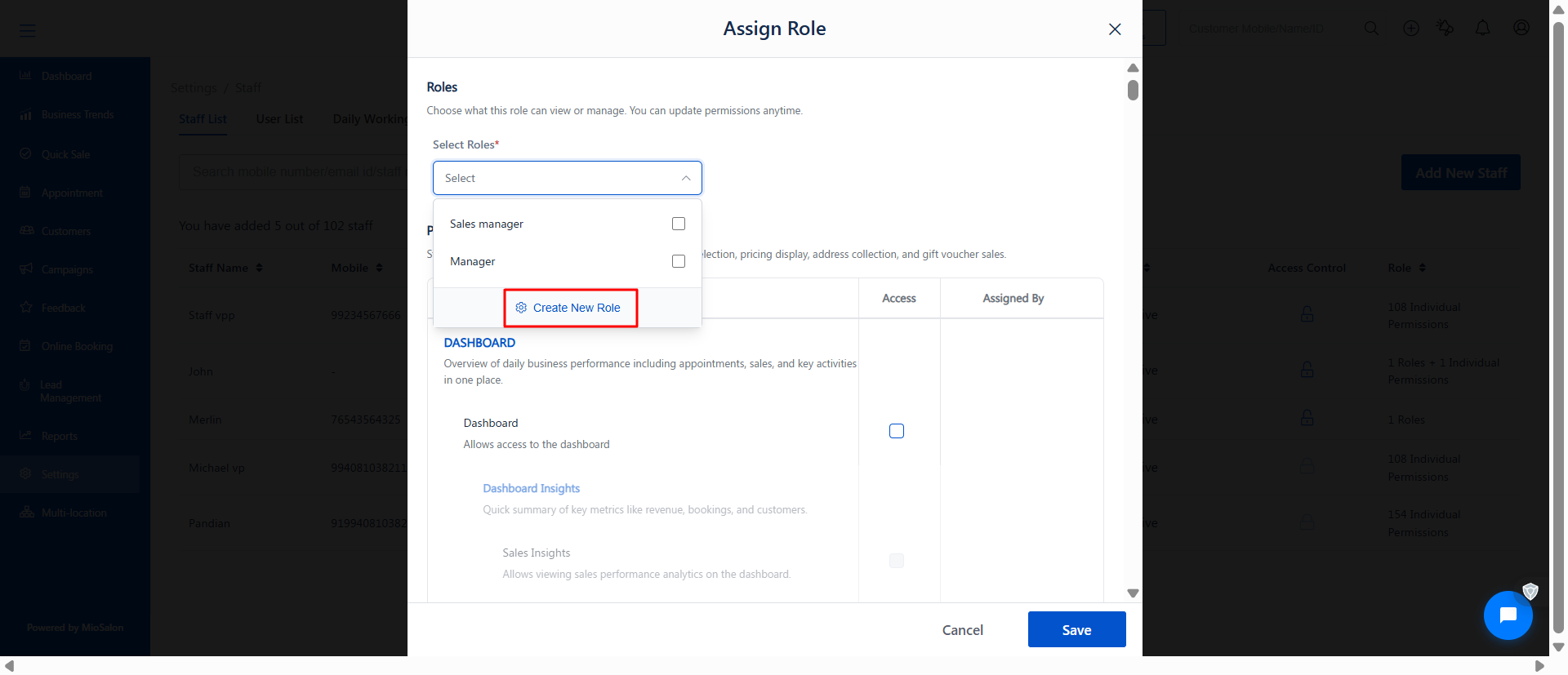
In the popup, click on Select Roles dropdown. (See screenshot)
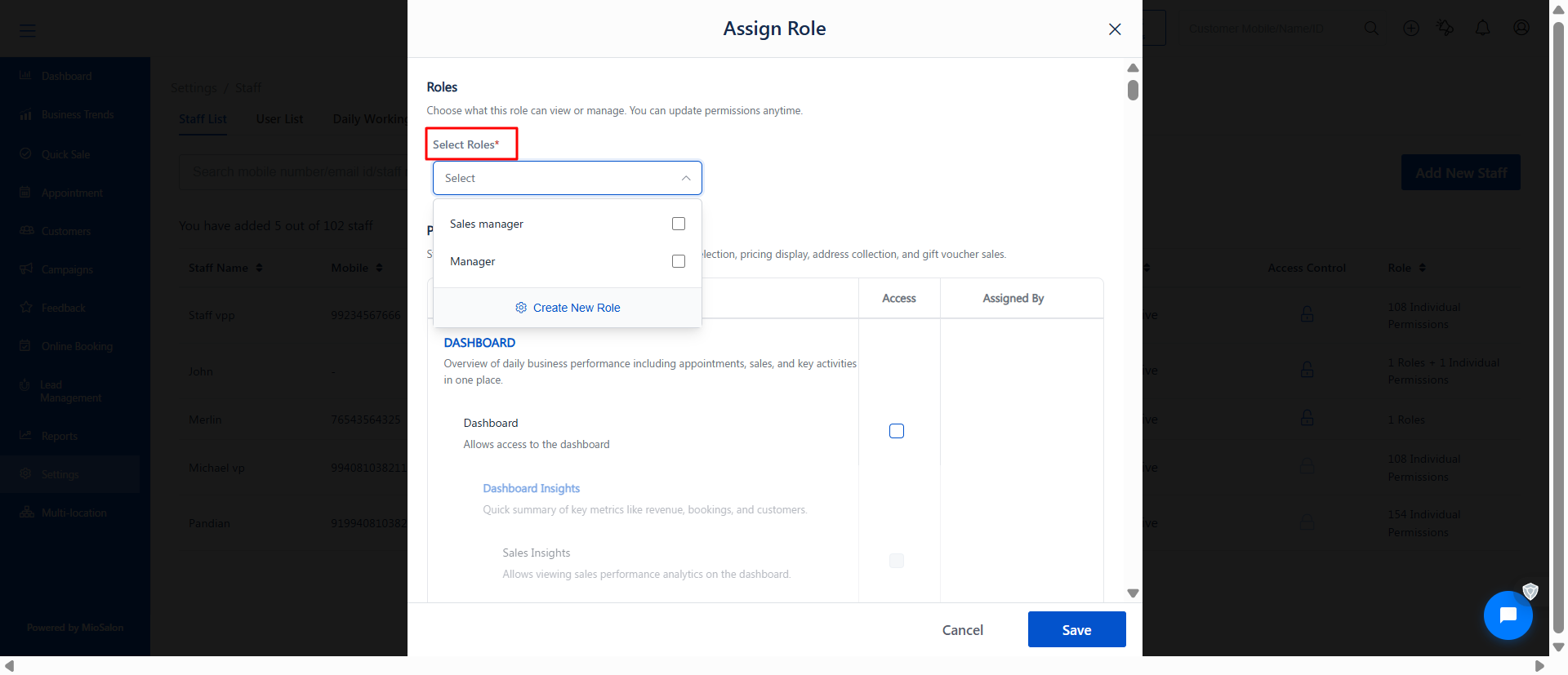
Choose the required role (e.g., Sales Manager, Manager).
You can also click Create New Role if needed.
3. Review Assigned Permissions
Once a role is selected, its permissions will be displayed below. (See screenshot)
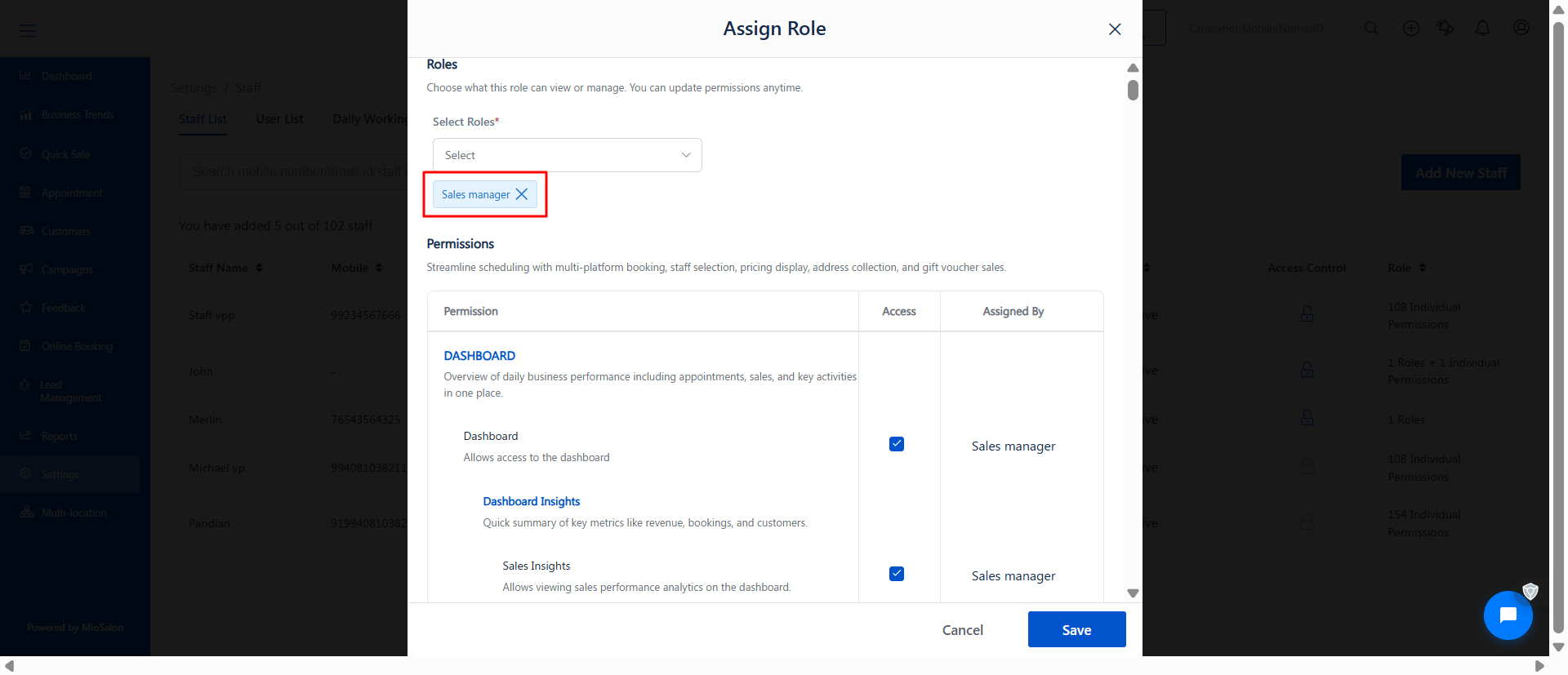
You can view:
Enabled permissions
Access level
Assigned source (Role name)
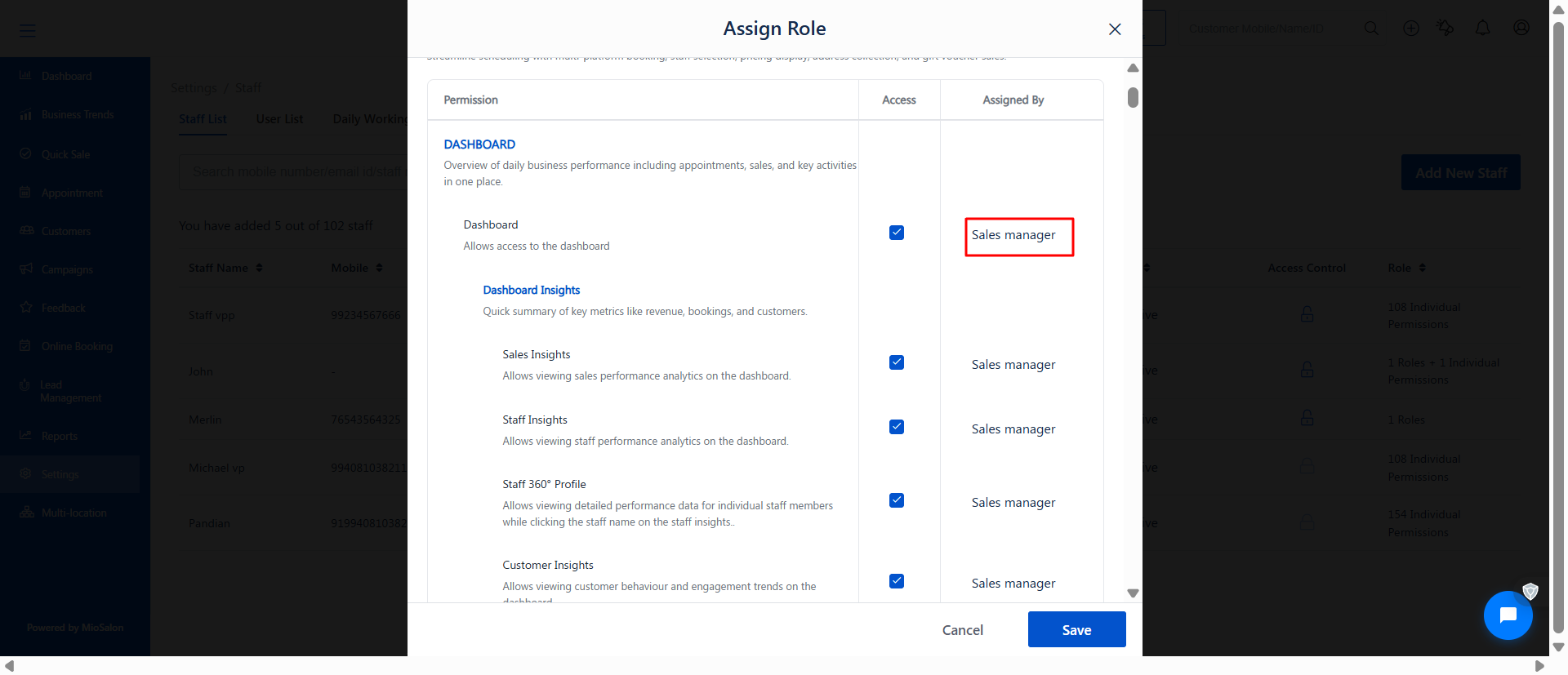
? This helps you understand what access the staff will receive.
4. Assign Role to Staff
Click Save after selecting the role.
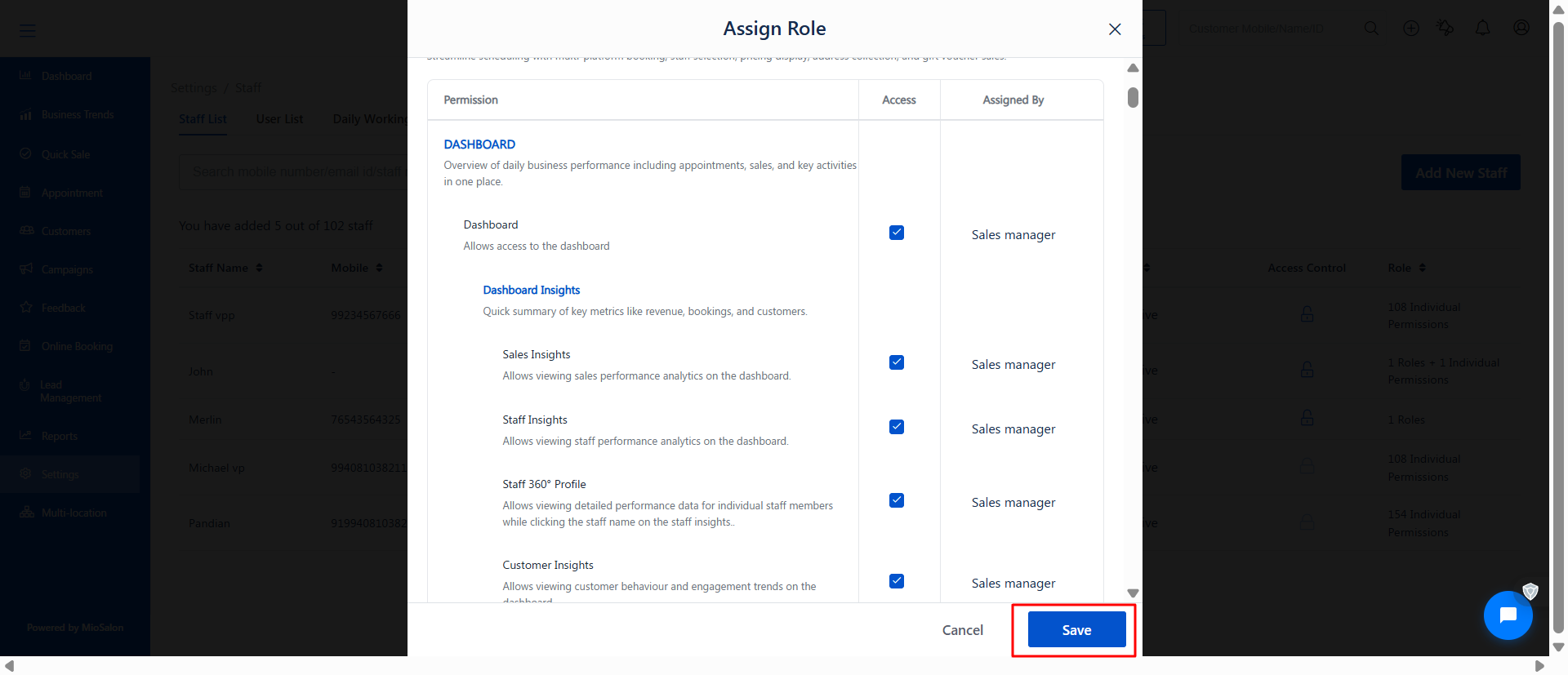
The role will now be assigned to the staff.
Result:
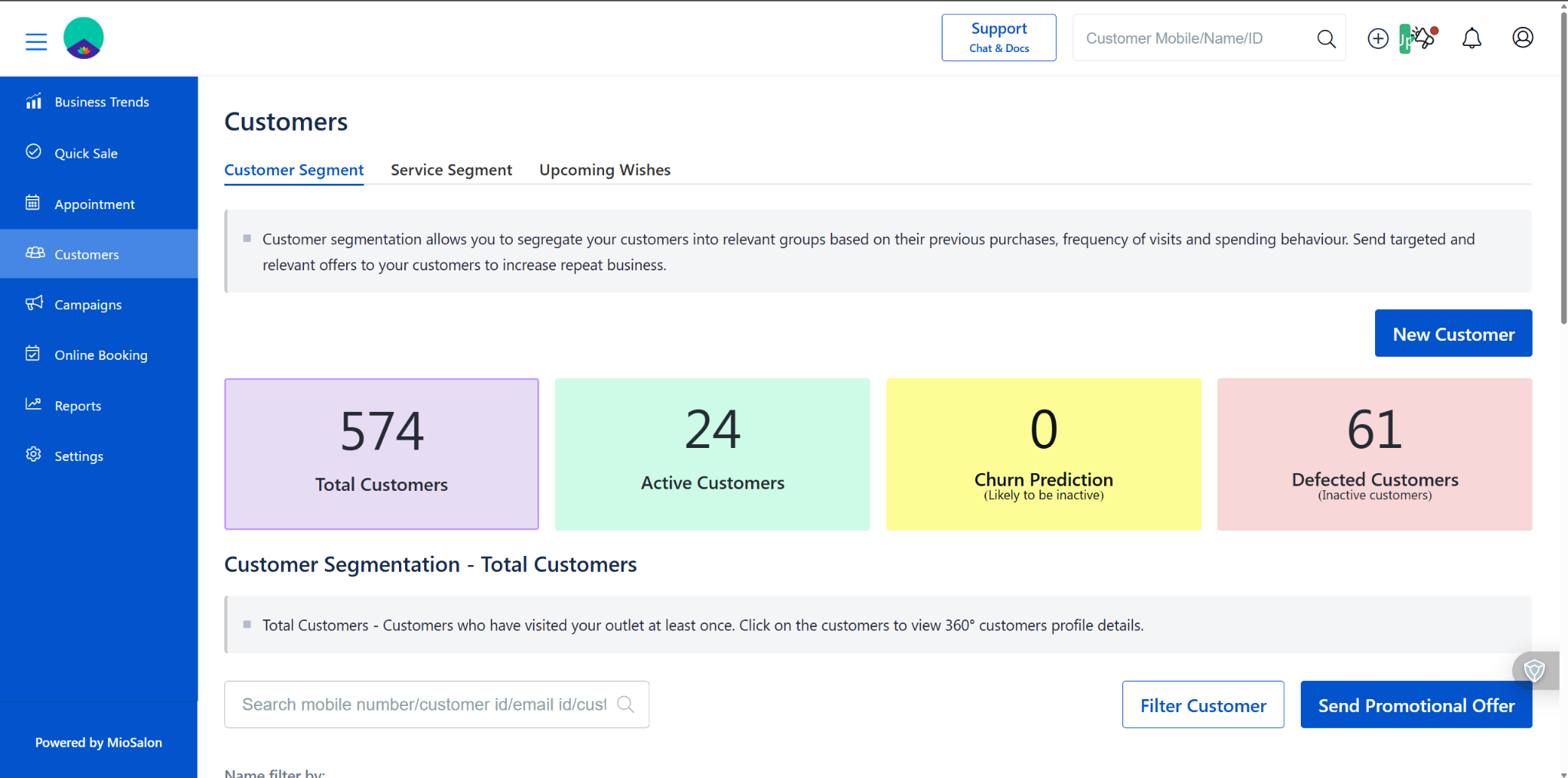
The staff will have access based only on the assigned role. (See screenshot)
Note: Shown only the Limited Modules based on the access level.
5. Assign Role Only (No Individual Permissions)
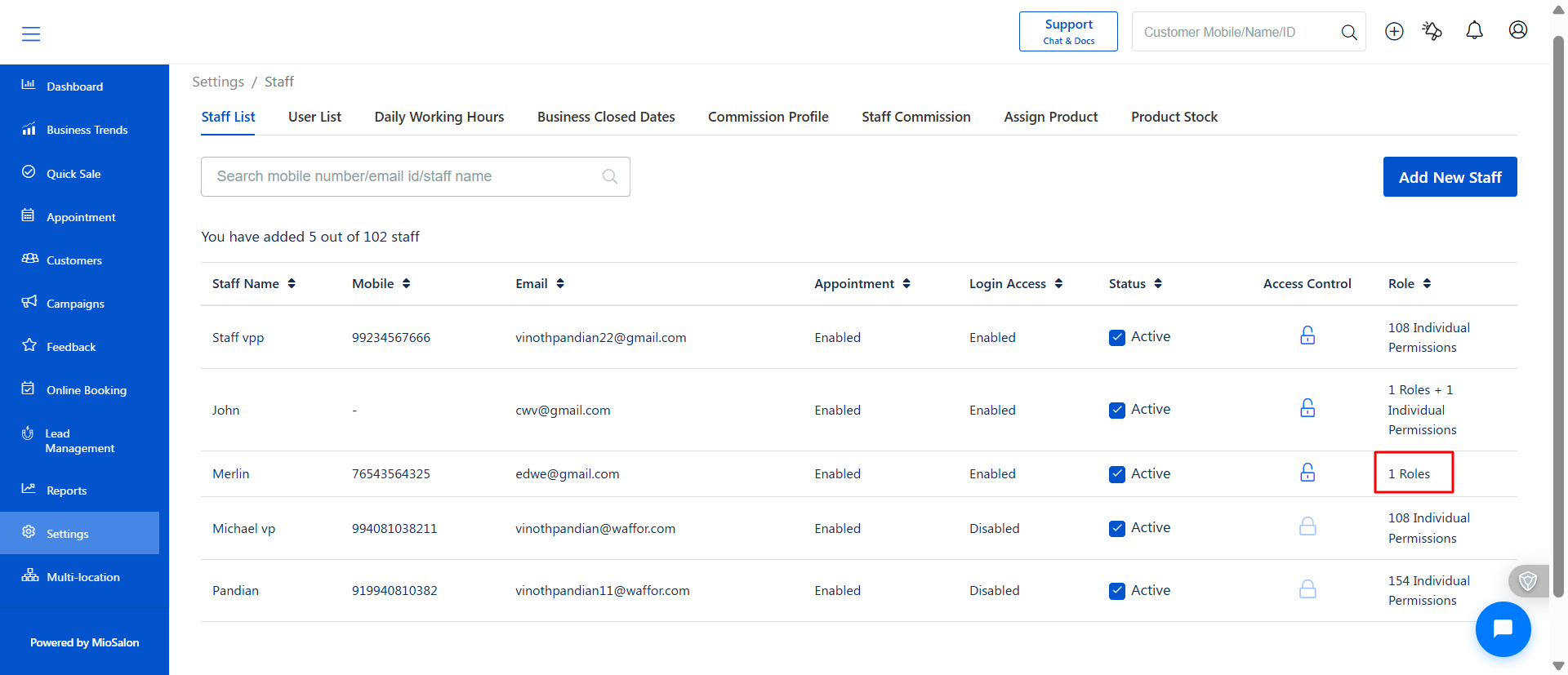
If only a role is assigned:
The staff will inherit all permissions from that role.
The Staff List will show “1 Role” under the Role column. (See screenshot)
6. Add Individual Permissions
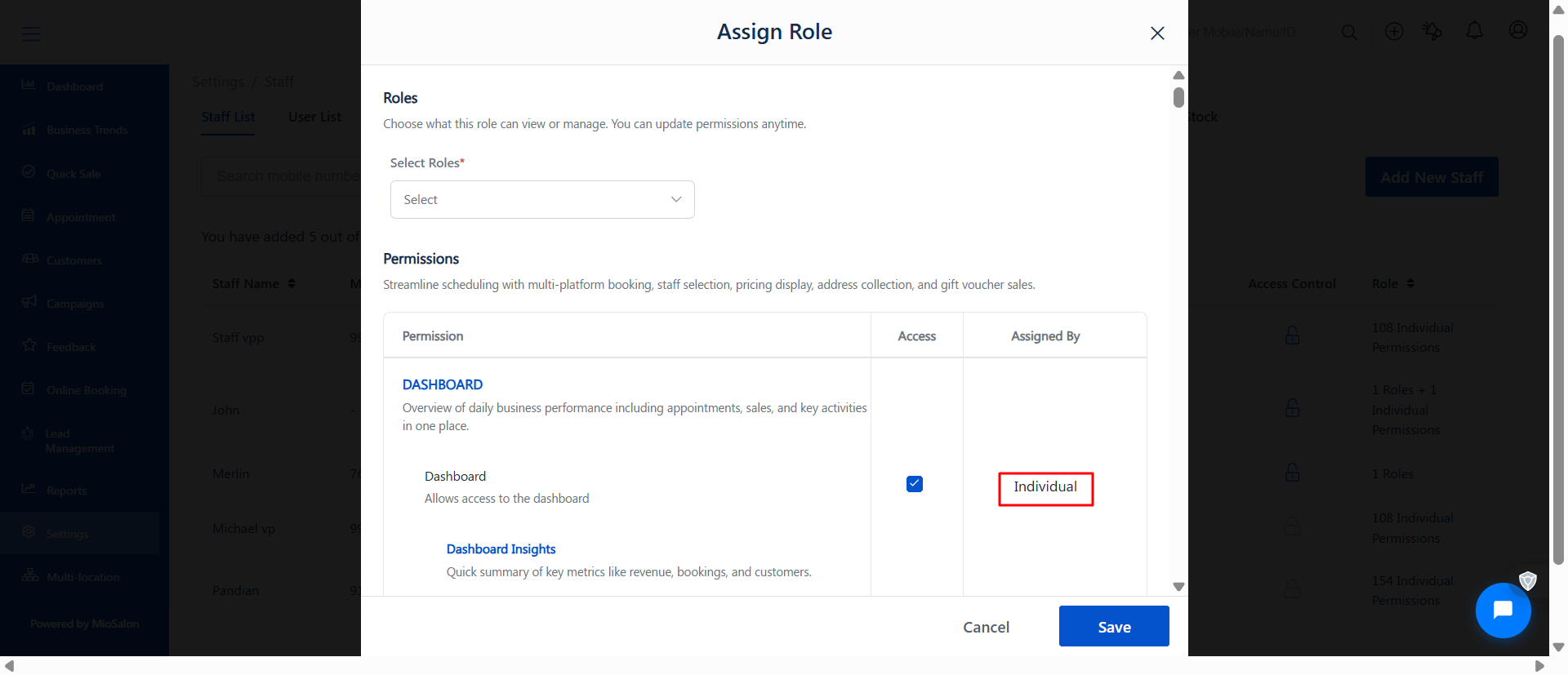
In the Assign Role popup, you can additionally enable/disable specific permissions.
These are called Individual Permissions. (See screenshot)
? This is useful when:
A staff needs slightly more or less access than their role provides
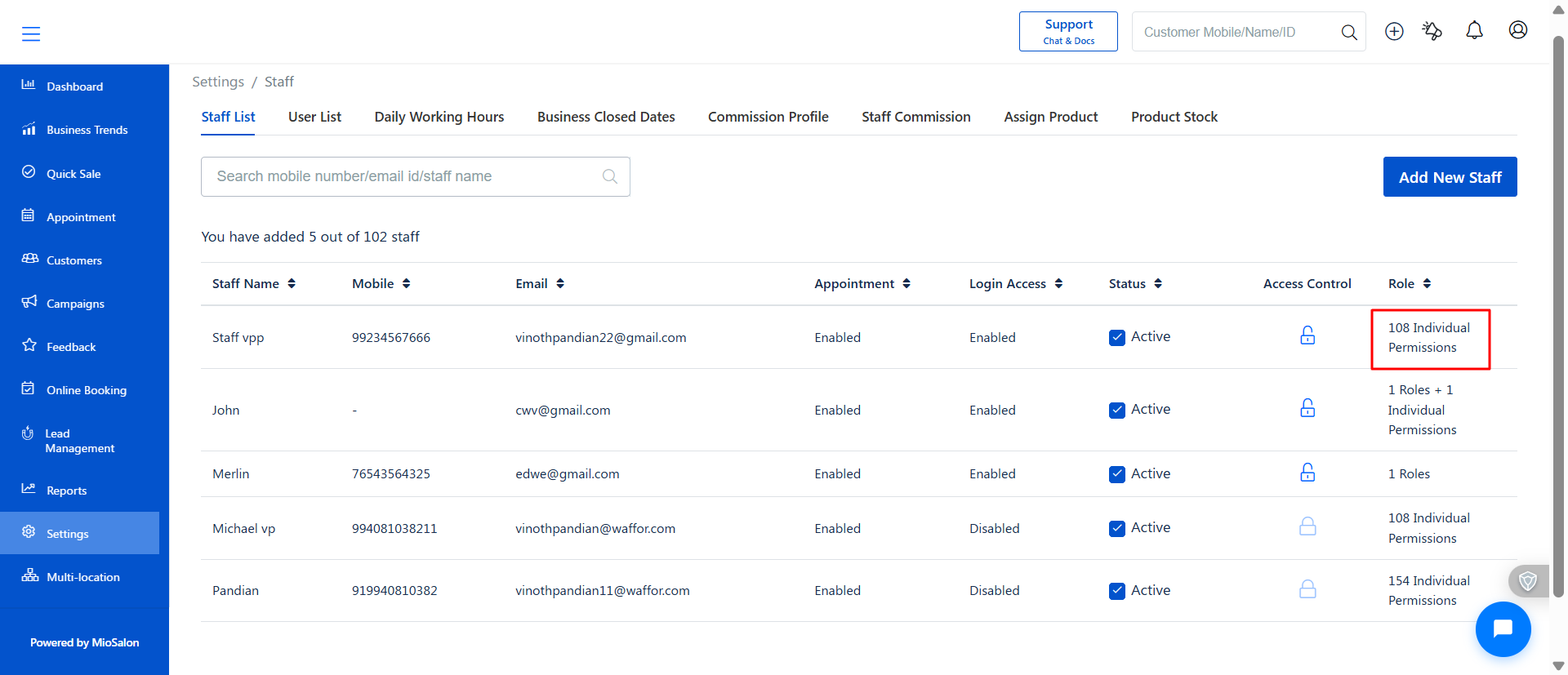
The Staff List will display:
“Individual Permissions” (See screenshot)
7. Assign Role + Individual Permissions
Select a role and adjust required permissions.
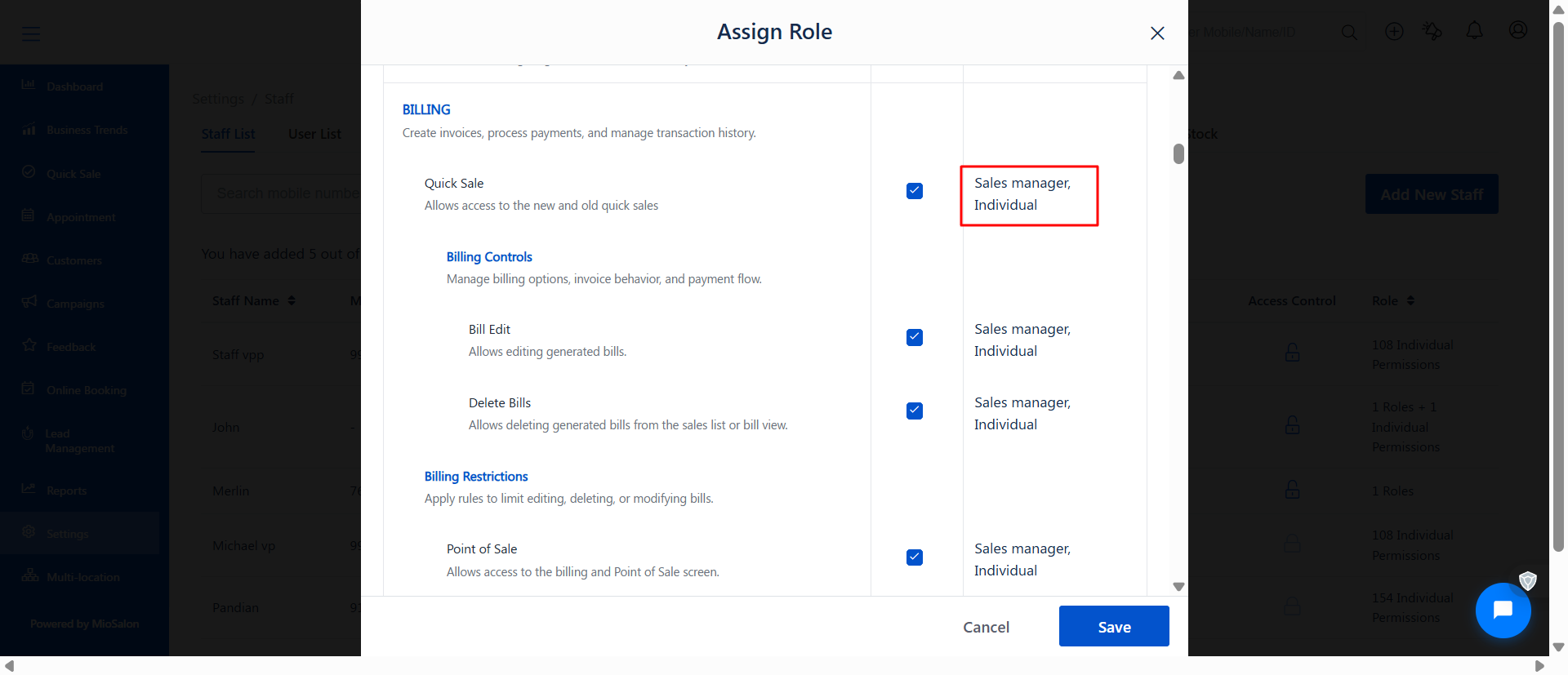
Click Save.
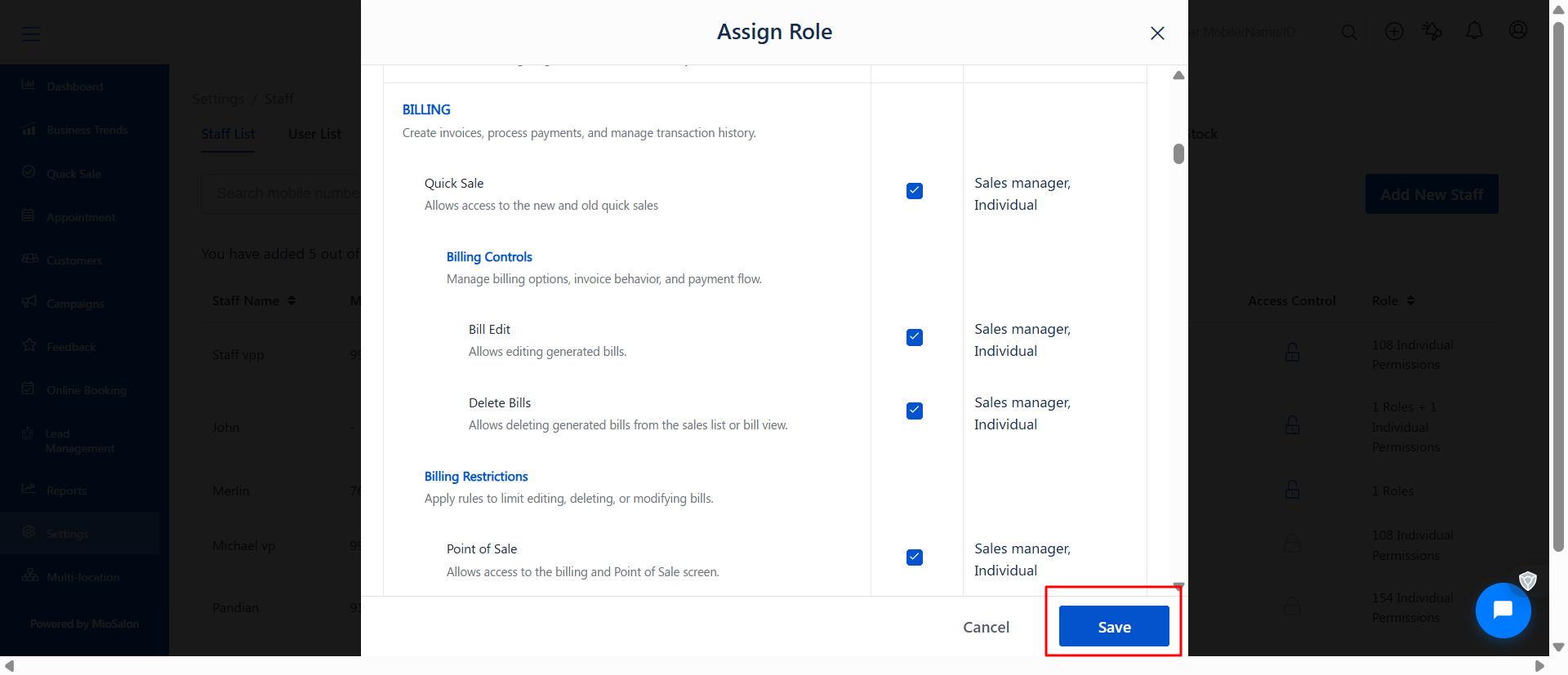
Result:
The staff will have:
Role-based permissions
Plus customized individual permissions
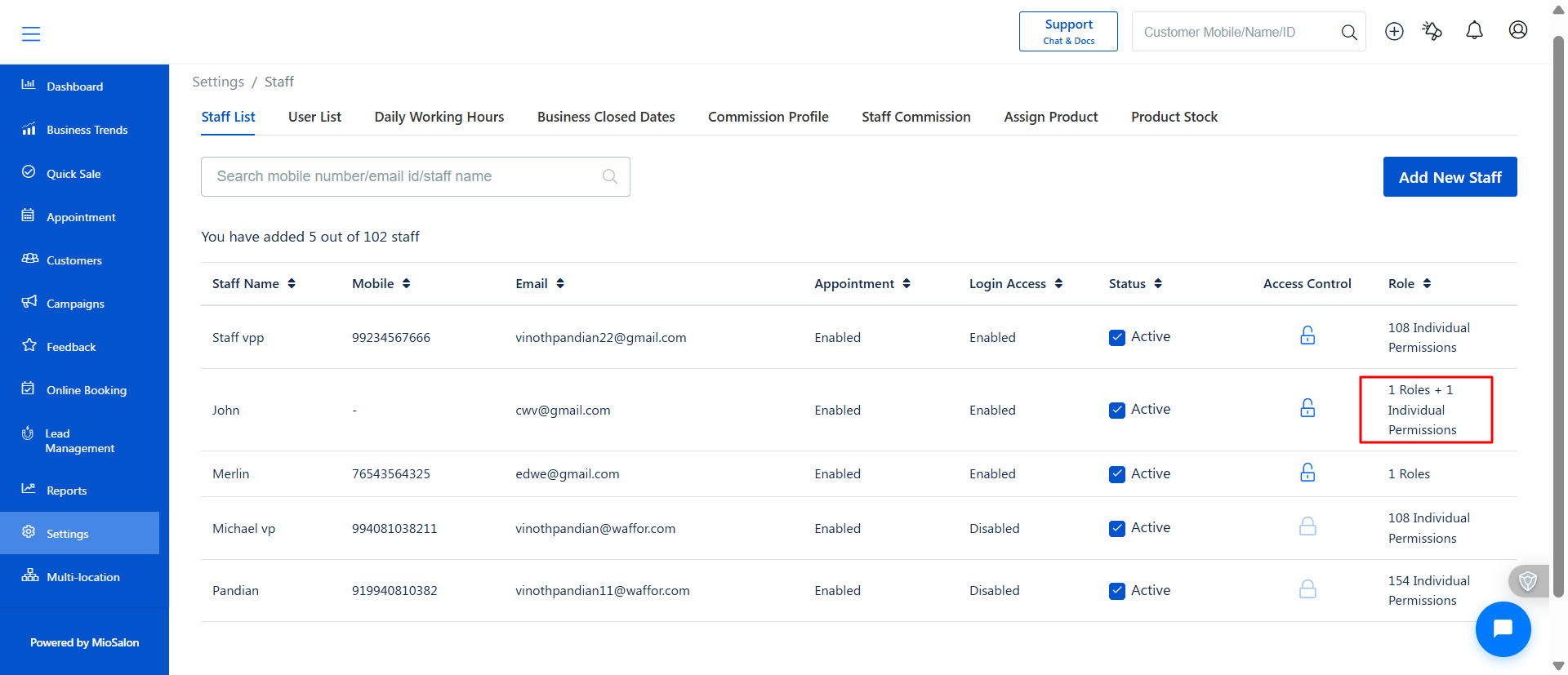
The Staff List will display:
“1 Role + Individual Permissions” (See screenshot)
8. View Assigned Access Details
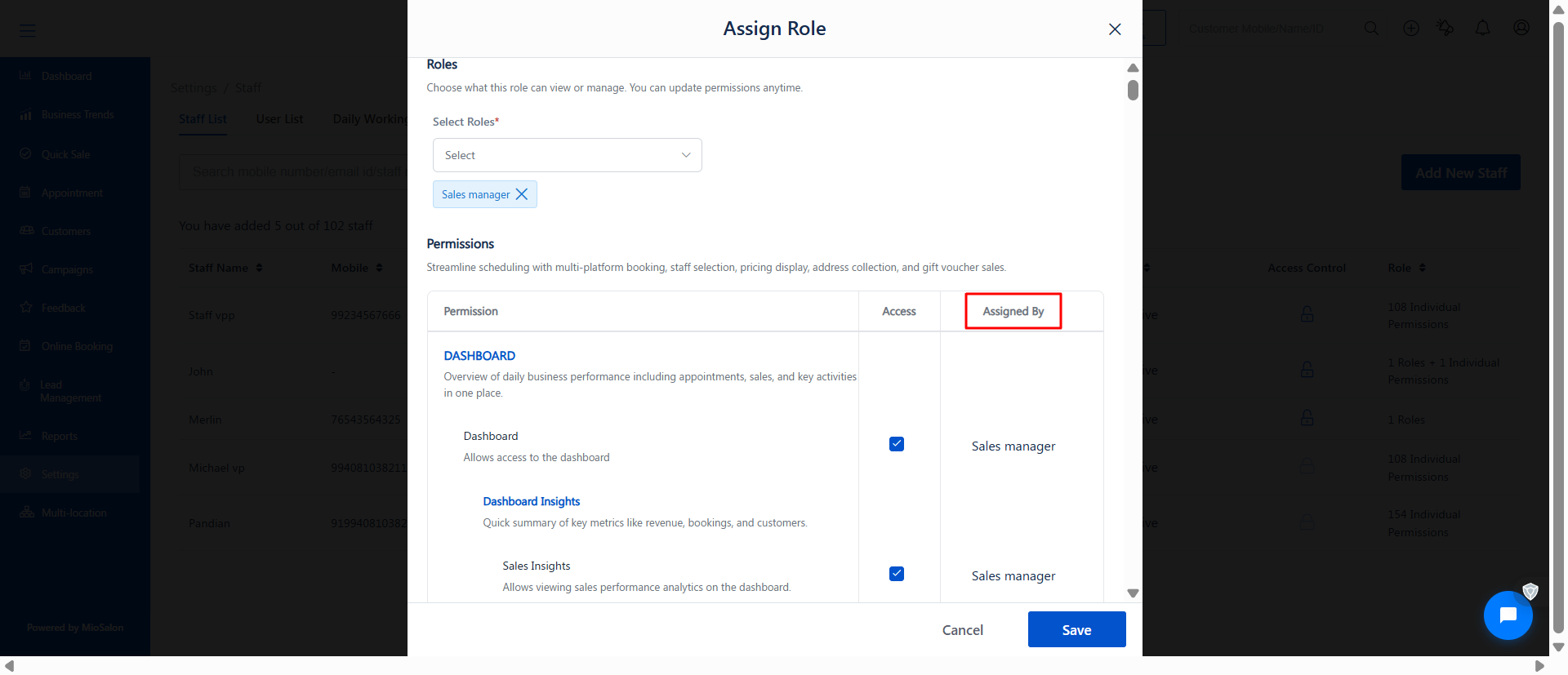
Open the Assign Role popup again.
You can see:
Which permissions come from the role
Which are assigned individually
Clearly labeled under Assigned By column (See screenshot)
Use Cases
Assign a Manager role with full access to senior staff
Give limited access to receptionists
Provide extra permissions to specific staff without changing the role
Handle exceptions without creating multiple roles
Benefits
Flexible Access Control – Combine roles with custom permissions
Improved Security – Restrict or grant access as needed
Operational Efficiency – Avoid creating too many roles
Was this article helpful?
That’s Great!
Thank you for your feedback
Sorry! We couldn't be helpful
Thank you for your feedback
Feedback sent
We appreciate your effort and will try to fix the article