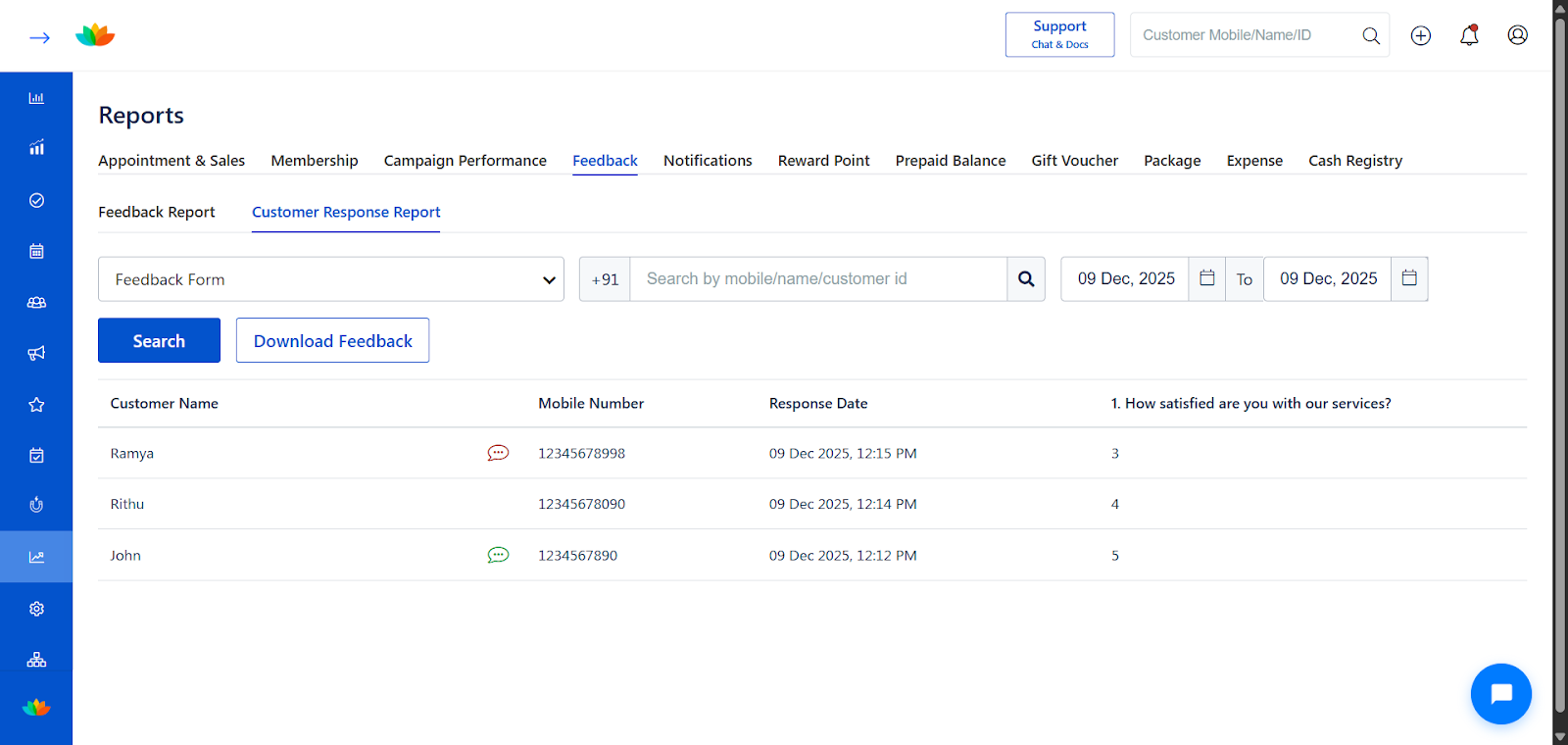
The Feedback Report helps you track customer responses collected through your feedback forms. You can view individual submissions, filter by form, search customers, apply date ranges, and download the complete report in Excel format.
How to Access the Feedback Report
Log in to your MioSalon account.
From the left navigation menu, click Reports.
Go to the Feedback tab.
Select Customer Response Report.
How to Filter Feedback Responses
1. Choose the Feedback Form
Use the Feedback Form dropdown to select the specific form you want to analyse.
2. Search Using Customer Details
You can refine results by entering:
Customer mobile number,
Customer name, or
Customer ID.
3. Apply Date Range
Use the From and To date selectors to view responses submitted within a specific time period.
Understanding the Feedback Report Table
The report displays the following fields for every response:
| Column | Description |
|---|---|
| Customer Name | Name of the customer who submitted the form. |
| Mobile Number | The customer’s registered mobile number. |
| Response Date & Time | Exact date and time when the feedback was submitted. |
| Feedback Answers | Responses to individual questions, displayed in the order they appear in the form. |
Note: The report now includes the time of submission for improved tracking and accuracy.
Downloading Feedback Responses
To export the feedback:
Apply your desired filters.
Click Download Feedback.
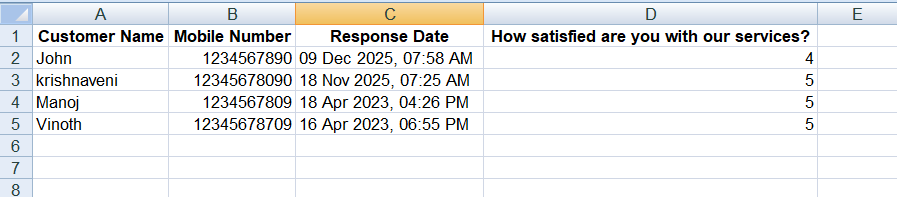
An Excel file (.xlsx) will be generated, containing:
Customer Name
Mobile Number
Response Date & Time
Answers for all questions in separate columns
Excel Output Example
| Customer Name | Mobile Number | Response Date | Q1: Rating |
|---|---|---|---|
| John | 1234567890 | 09 Dec 2025, 07:58 AM | 4 |
| Krishnaveni | 1234567890 | 18 Nov 2025, 07:25 AM | 5 |
Use Cases
✔ Measure customer satisfaction after appointments
✔ Identify service quality trends over time
✔ Compare feedback across branches (if using multi-outlet setup)
✔ Download data for advanced analysis in Excel, BI tools, or CRM
✔ Track response patterns using submission date and time
Best Practices
Review feedback regularly to understand customer experience.
Combine insights with Appointment & Sales reports for deeper analysis.
Use the Response Date & Time to identify peak engagement hours.
Ensure your feedback form includes relevant rating and comment fields.
Was this article helpful?
That’s Great!
Thank you for your feedback
Sorry! We couldn't be helpful
Thank you for your feedback
Feedback sent
We appreciate your effort and will try to fix the article